
Tony Spiro
April 8, 2026
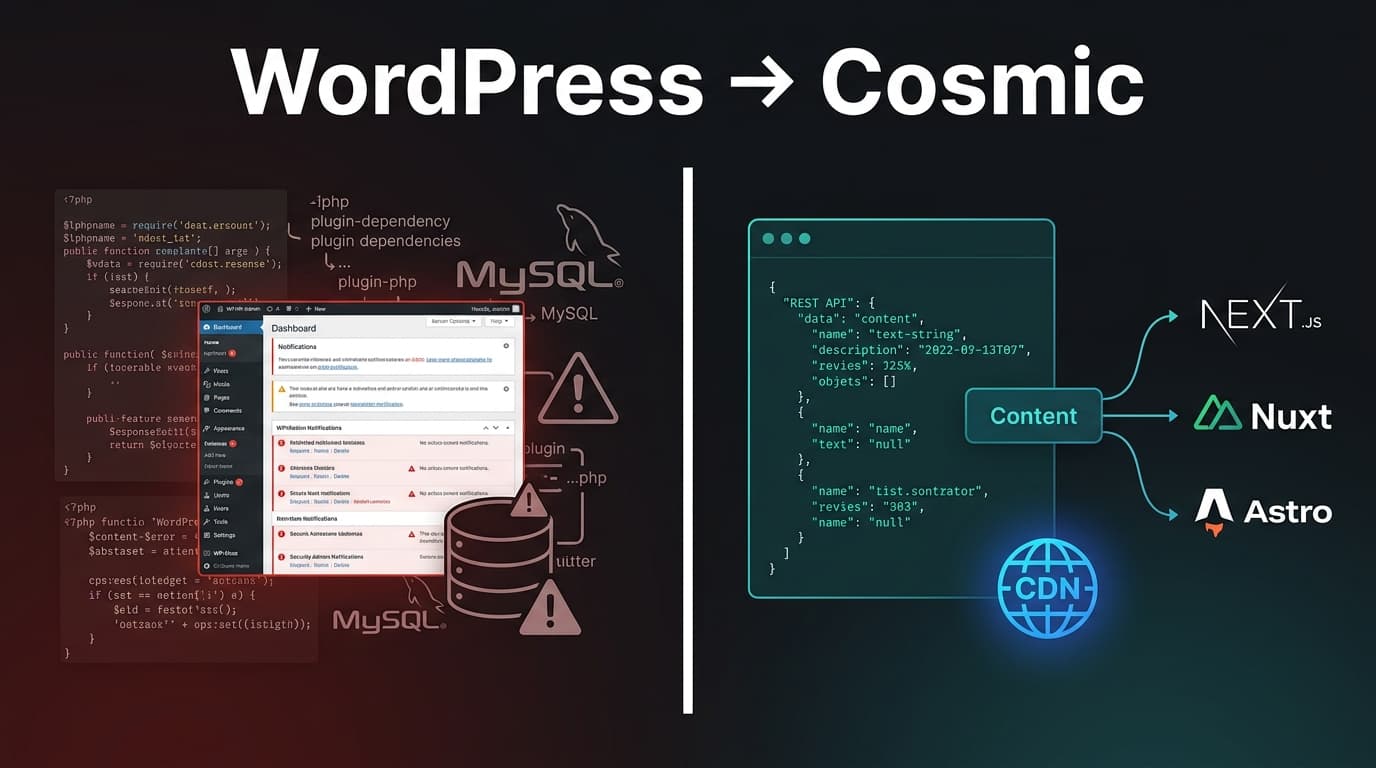
WordPress got you here. It powers a massive share of the web, and for good reason: it's flexible, well-documented, and has a plugin for nearly everything. But somewhere along the way, the CMS becomes the project. You're managing PHP versions, auditing plugin CVEs, fighting Gutenberg's half-baked block editor, and wondering why a content problem turned into infrastructure work.
This guide is for teams ready to move on. We'll walk through how to map your WordPress content model to Cosmic, export your data via the WP REST API, import it into Cosmic using the REST API and JavaScript SDK, and ship your new frontend in Next.js, Nuxt, or Astro. No servers to manage. No plugin update treadmill.
If you're still evaluating your options, see our full WordPress alternative comparison for a side-by-side breakdown.
1. Why Teams Migrate from WordPress
Plugin Bloat and a Relentless CVE Stream
The average production WordPress site runs dozens of plugins. Each one is a dependency with its own release cycle, compatibility matrix, and security surface area. When a critical CVE drops in a popular plugin, you're patching under pressure or taking the site down. The National Vulnerability Database lists hundreds of WordPress plugin vulnerabilities every year. Maintaining a secure WordPress site is a part-time job.
Cosmic has no plugins. The platform is managed, maintained, and secured by the Cosmic team. You consume the API; we handle everything else.
PHP and MySQL Scaling Walls
WordPress runs on PHP and MySQL. At moderate traffic levels this works fine. At scale, it requires careful configuration: object caching with Redis or Memcached, query optimization, read replicas, and a well-tuned reverse proxy in front of it all. Get any of it wrong and you get 502s under load.
Cosmic's REST API is served from a globally distributed CDN. Cached API responses come back in milliseconds regardless of traffic volume. There are no databases for you to tune, no PHP workers to scale, and no server to restart at 2am.
WP-Admin as a Content Bottleneck
WordPress editorial workflows often become developer bottlenecks. Content editors need help with Custom Field configurations. Developers get pulled in to fix layout-breaking Gutenberg blocks. Page builders introduce drag-and-drop complexity that looks flexible but generates unmaintainable markup.
Cosmic's dashboard is structured around clean content objects. Editors create and update content without touching layout. Developers own the presentation layer in code. The two teams work in parallel without blocking each other.
Maximilian Wuhr, Co-Founder at FINN, describes exactly this outcome:
"Cosmic is: us never having to ask a developer to change anything on the backend of our website."
Gutenberg's Failed Headless Pivot
WordPress has made moves toward headless: the WP REST API, block-based editing, and the FSE (Full Site Editing) initiative. But Gutenberg's block format is tightly coupled to WordPress's rendering layer. When you try to go headless with WordPress, you're either parsing serialized block markup on the frontend or working around an API that wasn't designed for decoupled consumption.
Cosmic was built API-first from day one. Every piece of content is a clean, structured JSON object. There's no legacy rendering layer to work around, no block serialization format to parse, and no wp_posts table to query.
Performance Overhead
Out of the box, WordPress is a PHP application that generates HTML on every request. Even with page caching, you're still loading plugins on every uncached request, running database queries, and fighting a startup time that grows with every plugin you add. Modern frontend performance demands (Core Web Vitals, edge rendering, ISR) are bolted onto a CMS that wasn't designed for them.
With Cosmic, your frontend fetches clean structured data via the REST API and renders it however your framework handles it best: static at build time, server-rendered at the edge, or client-side with SWR. The CMS doesn't touch your rendering layer at all.
2. Content Model Mapping
WordPress and Cosmic share the same fundamental concept: structured content with fields. The terminology is different, but the mapping is practical.
| WordPress Concept | Cosmic Equivalent |
|---|---|
| Posts | Objects (type: blog-posts) |
| Pages | Objects (type: pages) |
| Custom Post Types | Object Types |
| ACF Fields / Meta Fields | Metafields |
| ACF Repeater | Repeater Metafield |
| ACF Relationship | Object / Objects Metafield |
| Media Library | Cosmic Media (served via imgix CDN) |
| Categories | Object (type: categories) + relationship metafield |
| Tags | Object (type: tags) + relationship metafield |
| Post Status (draft/publish) | Object Status (draft/published) |
| Author | Object (type: authors) + relationship metafield |
| Permalinks / Slugs | Slug field (auto-generated or custom) |
Mapping Example: Blog Post
WordPress Post + ACF Fields:
{
  "ID": 42,
  "post_title": "My Blog Post",
  "post_name": "my-blog-post",
  "post_content": "<p>Long-form content here...</p>",
  "post_status": "publish",
  "post_date": "2026-03-15",
  "acf": {
    "featured_image": "https://example.com/image.jpg",
    "excerpt": "Short summary",
    "author_name": "Jane Smith"
  }
}
Cosmic Object (blog-posts type):
{
  "title": "My Blog Post",
  "slug": "my-blog-post",
  "type": "blog-posts",
  "status": "published",
  "metadata": {
    "content": "<p>Long-form content here...</p>",
    "image": "https://imgix.cosmicjs.com/your-image.jpg",
    "teaser": "Short summary",
    "author": "jane-smith",
    "published_date": "2026-03-15"
  }
}
Cosmic metafields support: text, textarea, markdown, html-textarea, number, date, switch, select, multi-select, file, files, object, objects, json, repeater, and more. ACF field types map cleanly.
3. Step-by-Step Migration
Step 1: Export WordPress Content via the WP REST API
WordPress exposes your content through its built-in REST API. Use it to export posts, pages, custom post types, and media before you start.
# Export all posts (replace with your WordPress URL)
curl "https://your-wordpress-site.com/wp-json/wp/v2/posts?per_page=100&_embed" \
  > wp-posts.json

# Export pages
curl "https://your-wordpress-site.com/wp-json/wp/v2/pages?per_page=100&_embed" \
  > wp-pages.json

# Export a custom post type (e.g. "products")
curl "https://your-wordpress-site.com/wp-json/wp/v2/products?per_page=100&_embed" \
  > wp-products.json
For sites with authentication (private posts, draft content), use an Application Password:
curl "https://your-wordpress-site.com/wp-json/wp/v2/posts?per_page=100&status=any" \
  -u "your-username:xxxx xxxx xxxx xxxx xxxx xxxx" \
  > wp-posts-all.json
For large sites, paginate through all records:
// export-wordpress.ts
const WP_URL = 'https://your-wordpress-site.com';

async function exportPostType(type: string): Promise<any[]> {
  let page = 1;
  const perPage = 100;
  const allPosts: any[] = [];

  while (true) {
    const url = `${WP_URL}/wp-json/wp/v2/${type}?per_page=${perPage}&page=${page}&_embed`;
    const res = await fetch(url);

    if (!res.ok) break;

    const posts = await res.json();
    if (!posts.length) break;

    allPosts.push(...posts);

    const totalPages = parseInt(res.headers.get('X-WP-TotalPages') ?? '1', 10);
    if (page >= totalPages) break;
    page++;
  }

  return allPosts;
}

const posts = await exportPostType('posts');
const pages = await exportPostType('pages');

console.log(`Exported ${posts.length} posts, ${pages.length} pages`);
Step 2: Create Object Types in Cosmic
Log into your Cosmic dashboard and create Object Types that match your WordPress post types. You can also do this via the Cosmic REST API.
For a standard WordPress blog, you'll create:
blog-postswith metafields:content(html-textarea),image(file),teaser(textarea),author(object),category(object),published_date(date)pageswith metafields:content(html-textarea),image(file)authorswith metafields:bio(textarea),image(file)
For Custom Post Types with ACF fields, model each field as the closest Cosmic metafield type.
Step 3: Install the Cosmic SDK and Import Data
npm install @cosmicjs/sdk
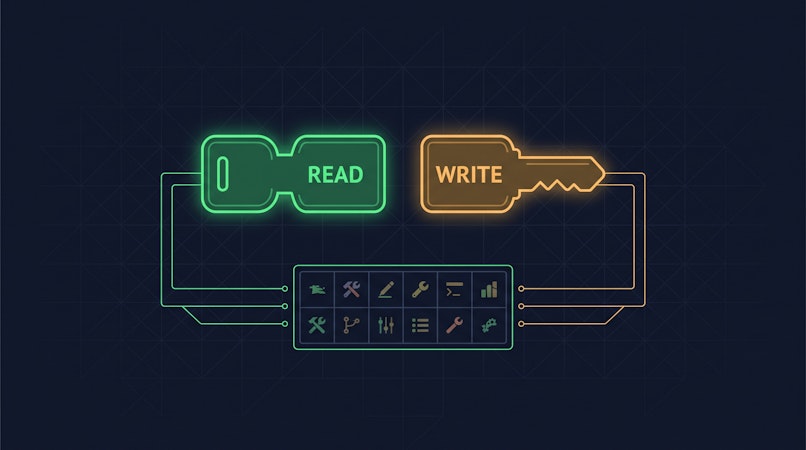
Set your environment variables:
COSMIC_BUCKET_SLUG=your-bucket-slug
COSMIC_READ_KEY=your-read-key
COSMIC_WRITE_KEY=your-write-key
Write your import script:
// import-to-cosmic.ts
import { createBucketClient } from '@cosmicjs/sdk';
import wpPosts from './wp-posts.json';

const cosmic = createBucketClient({
  bucketSlug: process.env.COSMIC_BUCKET_SLUG!,
  readKey: process.env.COSMIC_READ_KEY!,
  writeKey: process.env.COSMIC_WRITE_KEY!,
});

// Strip WordPress block editor comments from content
function cleanContent(raw: string): string {
  return raw
    .replace(/<!-- wp:.*?-->/gs, '')
    .replace(/<!-- \/wp:.*?-->/g, '')
    .trim();
}

async function importPosts() {
  for (const post of wpPosts) {
    try {
      await cosmic.objects.insertOne({
        title: post.title.rendered,
        slug: post.slug,
        type: 'blog-posts',
        status: post.status === 'publish' ? 'published' : 'draft',
        metadata: {
          content: cleanContent(post.content.rendered),
          teaser: post.excerpt.rendered.replace(/<[^>]+>/g, '').trim(),
          published_date: post.date.split('T')[0],
          // Map ACF fields:
          // author: post.acf?.custom_author ?? '',
          // image: resolved imgix_url after media migration
        },
      });
      console.log(`✓ Imported: ${post.title.rendered}`);
    } catch (err: any) {
      console.error(`✗ Failed: ${post.title.rendered}`, err.message);
    }
  }
}

await importPosts();
Step 4: Migrate Media to Cosmic
With your Cosmic bucket configured, you can now upload your existing media files using the Cosmic SDK. This step walks you through the process of transferring your images, documents, and other files into Cosmic.
Install the Cosmic SDK
npm install @cosmicjs/sdk
Initialize the Bucket Client
import { createBucketClient } from '@cosmicjs/sdk'

const cosmic = createBucketClient({
  bucketSlug: 'BUCKET_SLUG',
  readKey: 'BUCKET_READ_KEY',
  writeKey: 'BUCKET_WRITE_KEY'
})
Upload Media Files
Use the insertOne method to upload each file to your bucket. You can optionally organize files into folders and attach metadata to keep your media library structured.
import fs from 'fs'
import path from 'path'

async function migrateMedia(filePath, folder, metadata) {
  const filename = path.basename(filePath)
  const buffer = fs.readFileSync(filePath)

  const media = {
    originalname: filename,
    buffer: buffer
  }

  const data = await cosmic.media.insertOne({
    media: media,
    folder: folder,
    metadata: metadata
  })

  console.log('Uploaded:', data.media.url)
  return data.media
}

// Example usage
await migrateMedia('./images/hero-banner.jpg', 'marketing', {
  caption: 'Homepage hero banner',
  credit: 'Design Team'
})
Migrate a Batch of Files
If you have a large collection of media to migrate, you can loop through your files and upload them in sequence.
import fs from 'fs'
import path from 'path'

const mediaDirectory = './images'
const targetFolder = 'migrated-assets'

async function batchMigrateMedia() {
  const files = fs.readdirSync(mediaDirectory)

  for (const file of files) {
    const filePath = path.join(mediaDirectory, file)
    const buffer = fs.readFileSync(filePath)

    const media = {
      originalname: file,
      buffer: buffer
    }

    try {
      const data = await cosmic.media.insertOne({
        media: media,
        folder: targetFolder
      })
      console.log(`Migrated: ${file} -> ${data.media.url}`)
    } catch (err) {
      console.error(`Failed to migrate: ${file}`, err)
    }
  }
}

await batchMigrateMedia()
Verify Uploaded Media
After migration, you can verify your files were uploaded successfully by retrieving the media list from your bucket.
const { media, total } = await cosmic.media.find({
  folder: 'migrated-assets'
})
.props('name,url,size,created_at')
.limit(50)

console.log(`Total media migrated: ${total}`)
media.forEach((item) => {
  console.log(`${item.name} - ${item.url}`)
})
Optimize Images with imgix
Once your media is in Cosmic, every image automatically receives an imgix_url property. You can use this URL to apply on-the-fly image transformations such as resizing, compression, and format conversion, without storing multiple versions of the same file.
const { media } = await cosmic.media.findOne({
  name: 'asdf-1234-hero-banner.jpg'
}).props(['name', 'imgix_url', 'alt_text'])

// Generate an optimized thumbnail
const thumbnailUrl = `${media.imgix_url}?w=400&auto=format,compress`
console.log('Optimized URL:', thumbnailUrl)
Upload limit: Each file uploaded to Cosmic can be up to 900MB in size, making it suitable for high-resolution images, video files, and large documents.
Step 5: Map Custom Fields (ACF) to Metafields
If you're using Advanced Custom Fields, the WP REST API exposes ACF data under the acf key on each post object (with the ACF to REST API plugin).
// Map ACF fields to Cosmic metafields in your import script
metadata: {
  content: cleanContent(post.content.rendered),
  // ACF text field
  subtitle: post.acf?.subtitle ?? '',
  // ACF true/false -> Cosmic switch
  featured: post.acf?.featured ? 'true' : 'false',
  // ACF number
  read_time: post.acf?.read_time ?? 0,
  // ACF date (YYYYMMDD -> YYYY-MM-DD)
  event_date: post.acf?.event_date
    ? `${post.acf.event_date.slice(0,4)}-${post.acf.event_date.slice(4,6)}-${post.acf.event_date.slice(6,8)}`
    : '',
  // ACF image (after media migration)
  hero_image: urlMap[post.acf?.hero_image?.url] ?? '',
}
4. Framework Examples: Fetching from Cosmic
Once your data is in Cosmic, updating your frontend is the final step. Here are complete code examples replacing WordPress's query logic with Cosmic SDK calls.
Next.js (App Router)
// lib/cosmic.ts
import { createBucketClient } from '@cosmicjs/sdk';

export const cosmic = createBucketClient({
  bucketSlug: process.env.COSMIC_BUCKET_SLUG!,
  readKey: process.env.COSMIC_READ_KEY!,
});
// app/blog/page.tsx
import { cosmic } from '@/lib/cosmic';
import Image from 'next/image';

export default async function BlogPage() {
  const { objects: posts } = await cosmic.objects
    .find({ type: 'blog-posts' })
    .props('id,title,slug,metadata,created_at')
    .sort('-created_at');

  return (
    <main>
      <h1>Blog</h1>
      {posts.map((post) => (
        <article key={post.id}>
          {post.metadata.image?.imgix_url && (
            <Image
              src={`${post.metadata.image.imgix_url}?w=800&auto=format`}
              alt={post.title}
              width={800}
              height={450}
            />
          )}
          <h2>{post.title}</h2>
          <p>{post.metadata.teaser}</p>
          <a href={`/blog/${post.slug}`}>Read more</a>
        </article>
      ))}
    </main>
  );
}
// app/blog/[slug]/page.tsx
import { cosmic } from '@/lib/cosmic';

export default async function BlogPost({
  params,
}: {
  params: Promise<{ slug: string }>;
}) {
  const { slug } = await params;
  const { object: post } = await cosmic.objects
    .findOne({ type: 'blog-posts', slug })
    .props('title,metadata');

  return (
    <article>
      <h1>{post.title}</h1>
      <div dangerouslySetInnerHTML={{ __html: post.metadata.content }} />
    </article>
  );
}

export async function generateStaticParams() {
  const { objects: posts } = await cosmic.objects
    .find({ type: 'blog-posts' })
    .props('slug');
  return posts.map((post) => ({ slug: post.slug }));
}
Nuxt 3
Cosmic is a strong fit for Nuxt-powered projects. See our dedicated Nuxt headless CMS guide for deeper coverage.
// server/utils/cosmic.ts
import { createBucketClient } from '@cosmicjs/sdk';

export const cosmic = createBucketClient({
  bucketSlug: process.env.COSMIC_BUCKET_SLUG!,
  readKey: process.env.COSMIC_READ_KEY!,
});
<!-- pages/blog/index.vue -->
<template>
  <main>
    <h1>Blog</h1>
    <article v-for="post in posts" :key="post.id">
      <img
        v-if="post.metadata.image?.imgix_url"
        :src="`${post.metadata.image.imgix_url}?w=800&auto=format`"
        :alt="post.title"
      />
      <h2>{{ post.title }}</h2>
      <p>{{ post.metadata.teaser }}</p>
      <NuxtLink :to="`/blog/${post.slug}`">Read more</NuxtLink>
    </article>
  </main>
</template>

<script setup lang="ts">
import { cosmic } from '~/server/utils/cosmic';

const { data: posts } = await useAsyncData('blog-posts', async () => {
  const { objects } = await cosmic.objects
    .find({ type: 'blog-posts' })
    .props('id,title,slug,metadata')
    .sort('-created_at');
  return objects;
});
</script>
Astro
// src/lib/cosmic.ts
import { createBucketClient } from '@cosmicjs/sdk';

export const cosmic = createBucketClient({
  bucketSlug: import.meta.env.COSMIC_BUCKET_SLUG,
  readKey: import.meta.env.COSMIC_READ_KEY,
});
---
// src/pages/blog/index.astro
import { cosmic } from '../../lib/cosmic';

const { objects: posts } = await cosmic.objects
  .find({ type: 'blog-posts' })
  .props('id,title,slug,metadata,created_at')
  .sort('-created_at');
---

<html lang="en">
  <body>
    <main>
      <h1>Blog</h1>
      {posts.map((post) => (
        <article>
          {post.metadata.image?.imgix_url && (
            <img
              src={`${post.metadata.image.imgix_url}?w=800&auto=format`}
              alt={post.title}
            />
          )}
          <h2>{post.title}</h2>
          <p>{post.metadata.teaser}</p>
          <a href={`/blog/${post.slug}`}>Read more</a>
        </article>
      ))}
    </main>
  </body>
</html>
Also building with Vue? Check out our Vue headless CMS guide for component-level examples.
5. Cosmic AI Agents: Replace What WordPress Plugins Were Trying to Do
WordPress plugins often exist to paper over gaps in the core CMS: SEO plugins, editorial workflow plugins, form plugins, image optimization plugins, content scheduling plugins. Each one adds fragility.
Cosmic AI Agents replace whole categories of plugin dependency with native, programmable automation:
-
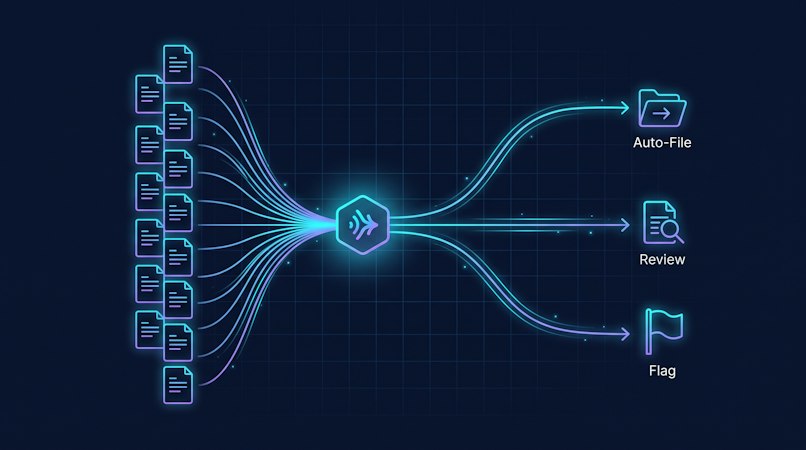
Content Agents generate and update CMS content automatically. Need to schedule a batch of seasonal posts? Run a bulk import from an external data source? Publish on a recurring cadence? A Content Agent handles it without a plugin, a cron job, or a developer in the loop.
-
Team Agents live inside Slack, WhatsApp, or Telegram. Instead of logging into WP-Admin, your editorial team asks the agent to draft a post, update a product description, or check what's scheduled to publish. The agent reads and writes to Cosmic directly from your team's existing chat tools.
-
Code Agents connect to your GitHub repository and work on feature branches autonomously. Need to add a new content type to your frontend? The agent writes the code, opens a pull request, and waits for review.
-
Computer Use Agents automate browser-based tasks: recording demo walkthroughs, extracting content from external pages, and cross-posting media between platforms.
The result: the plugin-driven WordPress automation layer gets replaced by agents that are version-controlled, auditable, and don't break when you update a dependency.
6. Pre-Launch Checklist
Before you cut over from WordPress to Cosmic, run through this list:
- All WordPress post types recreated as Cosmic Object Types with matching metafields
- All posts and pages imported with correct titles, slugs, and content
- Post statuses match: published posts are
published, drafts aredraft - All featured images uploaded to Cosmic and
imgix_urlreferences updated in content - ACF / custom field data mapped and confirmed in Cosmic metafields
- Authors and categories created as Cosmic objects and linked via relationship metafields
- Environment variables set in your frontend:
COSMIC_BUCKET_SLUG,COSMIC_READ_KEY - All API calls in the frontend updated — no remaining WordPress REST API or
wp-jsoncalls - Static paths regenerated (
generateStaticParamsin Next.js,getStaticPathsin Nuxt) - 301 redirects configured for any URL structure changes (e.g.
/year/month/slugto/blog/slug) - Staging environment tested end-to-end with real content before production cutover
- WordPress
wp-login.phpand XML-RPC blocked or access-restricted during transition - WordPress site kept live (read-only) for 2 to 4 weeks as a fallback reference
Pricing
Cosmic pricing is transparent with no hidden infrastructure costs:
| Plan | Price | Buckets | Team Members | Objects |
|---|---|---|---|---|
| Free | $0/month | 1 | 2 | 1,000 |
| Builder | $99/month | 2 | 3 | 5,000 |
| Team | $299/month | 3 | 5 | 20,000 |
| Business | $499/month | 5 | 10 | 50,000 |
| Enterprise | Custom | Custom | Custom | Custom |
Additional team members are $29/user/month. Compare that to the real cost of maintaining a WordPress stack: hosting, CDN, security scanning tools, plugin licenses, and the developer hours that disappear into maintenance.
Cosmic is backed by Y Combinator (W19). The platform is built for teams who want to ship content, not manage infrastructure.
Also Migrating from Another Platform?
If your team is also evaluating a move away from Strapi, see our complete Strapi migration guide and the Strapi alternative comparison for a full side-by-side.
Further Reading
- Why Cosmic is the Best WordPress Alternative
- Cosmic Headless CMS for Nuxt
- Cosmic Headless CMS for Vue
- Cosmic REST API Documentation
Ready to Make the Switch?
Migrating from WordPress to Cosmic is a one-time project that pays back every day after. No more plugin CVEs, no more WP-Admin bottlenecks, no more PHP servers between your content and your users. Your editors get a clean interface. Your developers get a predictable REST API. And your team stops spending weekends on CMS maintenance.
Start for free — your first bucket is free, no credit card required.
Or if you want to walk through your specific WordPress setup and map out the migration path, book a 30-minute call with Tony. He'll help you scope the work and get moving.