
Cosmic
January 27, 2026
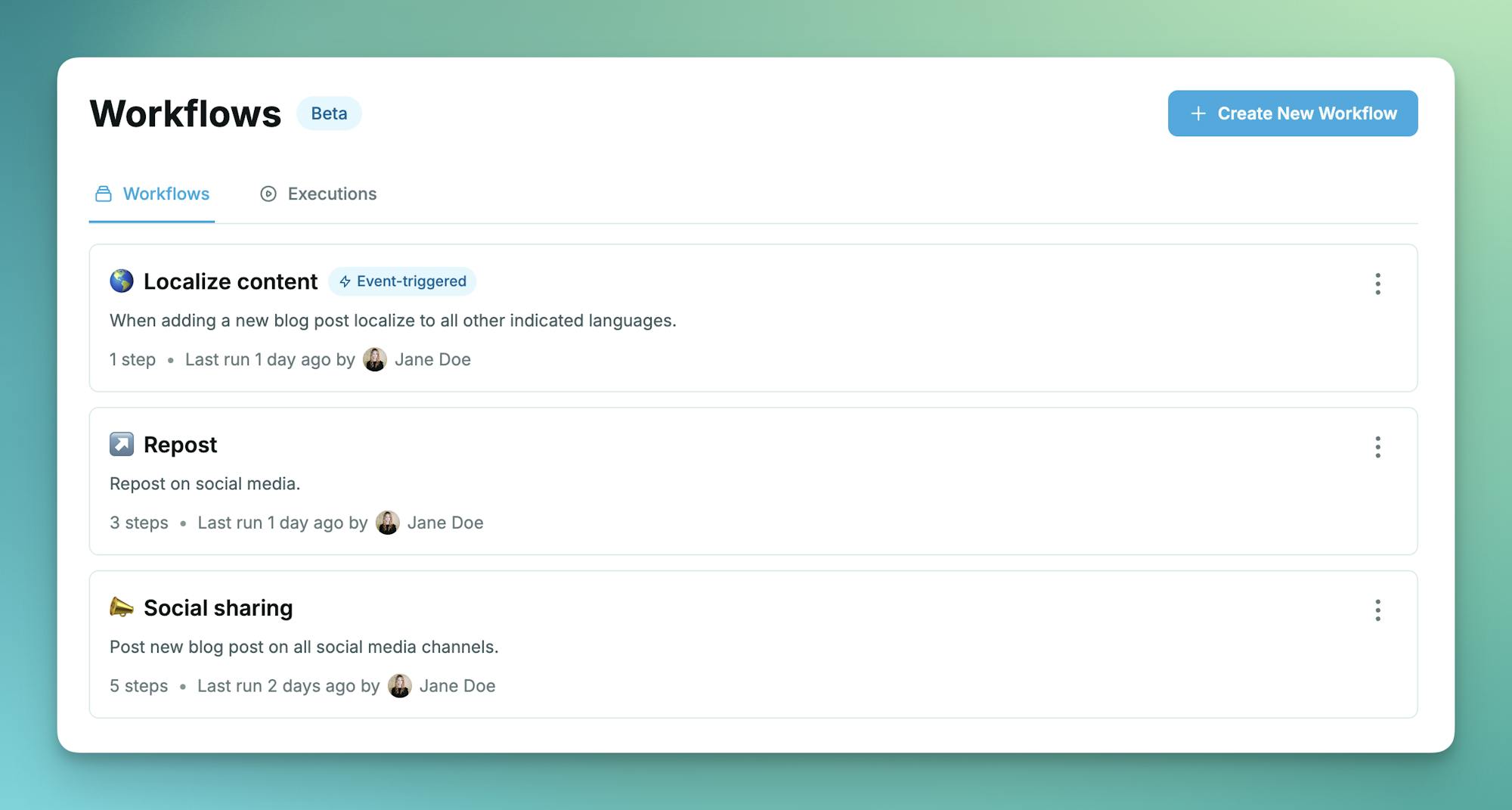
We're excited to announce AI Workflows — a powerful new feature that lets you chain multiple AI agents together to complete complex operations automatically. Instead of running individual agents one at a time, workflows orchestrate Content Agents, Code Agents, and Computer Use Agents in sequence or parallel, passing context between steps to accomplish in minutes what previously took days or weeks.
"I just tested Cosmic CMS's new agentic capabilities, and I felt like I was working with a whole team!"
— Chris Mintz, Senior Solutions Architect, Gateway Health Innovation
What Are Workflows?
While individual AI Agents excel at specific tasks — creating content, writing code, or automating browser actions — real-world projects often require multiple coordinated steps. AI Workflows solve this by letting you define multi-step automations that run autonomously.
Think of workflows as mission control for your AI workforce. Define the steps once, configure when they run, and let the system handle execution while you focus on what matters most.
The three agent types you can chain together:
- Content Agent — Research, create, and publish CMS content autonomously
- Code Agent — Build features in GitHub with commits and pull requests
- Computer Use Agent — Record demos and automate browser workflows
Key Capabilities
Workflow Builder
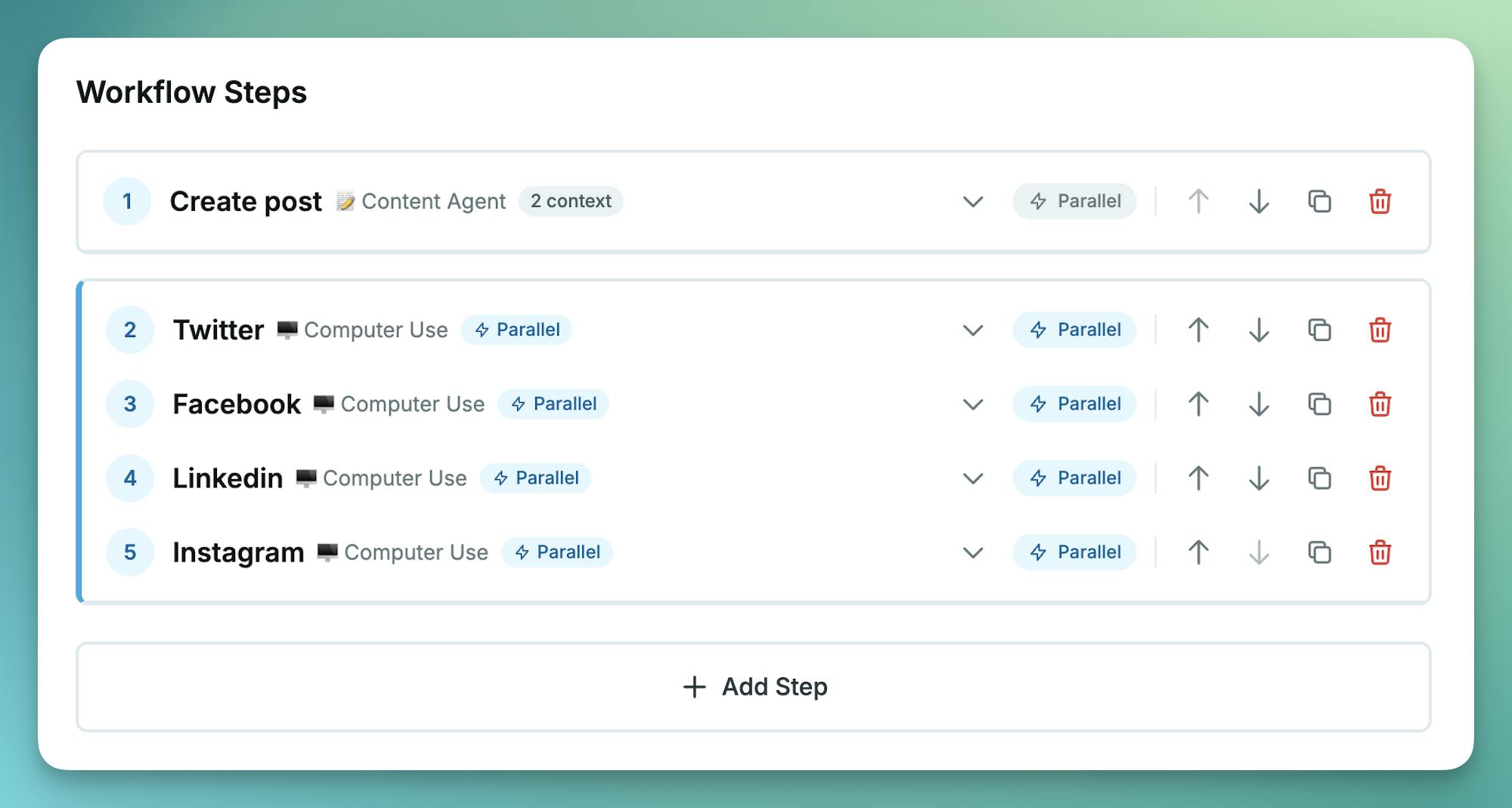
The visual workflow builder makes it easy to create multi-step automations:
- Add steps — Configure each step with its own agent type, prompt, and settings
- Reorder and organize — Drag steps to change execution order, duplicate successful configurations
- Step types — Beyond agent steps, add approval gates for human review or conditional logic for branching workflows
Execution Modes
Workflows support flexible execution strategies to match your needs:
Sequential Execution
Steps run one after another, with each step receiving context from previous steps. Perfect for pipelines where later steps depend on earlier results.
Parallel Execution
Group steps to run simultaneously when they don't depend on each other. A workflow analyzing multiple competitors can run all analyses in parallel, then consolidate results in a final step.
Dependencies
Define explicit dependencies between steps. A step won't start until its dependencies complete successfully, giving you precise control over execution order.
Context Passing
One of the most powerful features of workflows is automatic context passing between steps. Each step in a workflow automatically receives the outputs from previous steps, allowing agents to build on each other's work without manual intervention.
Example: Blog to Social Media Pipeline
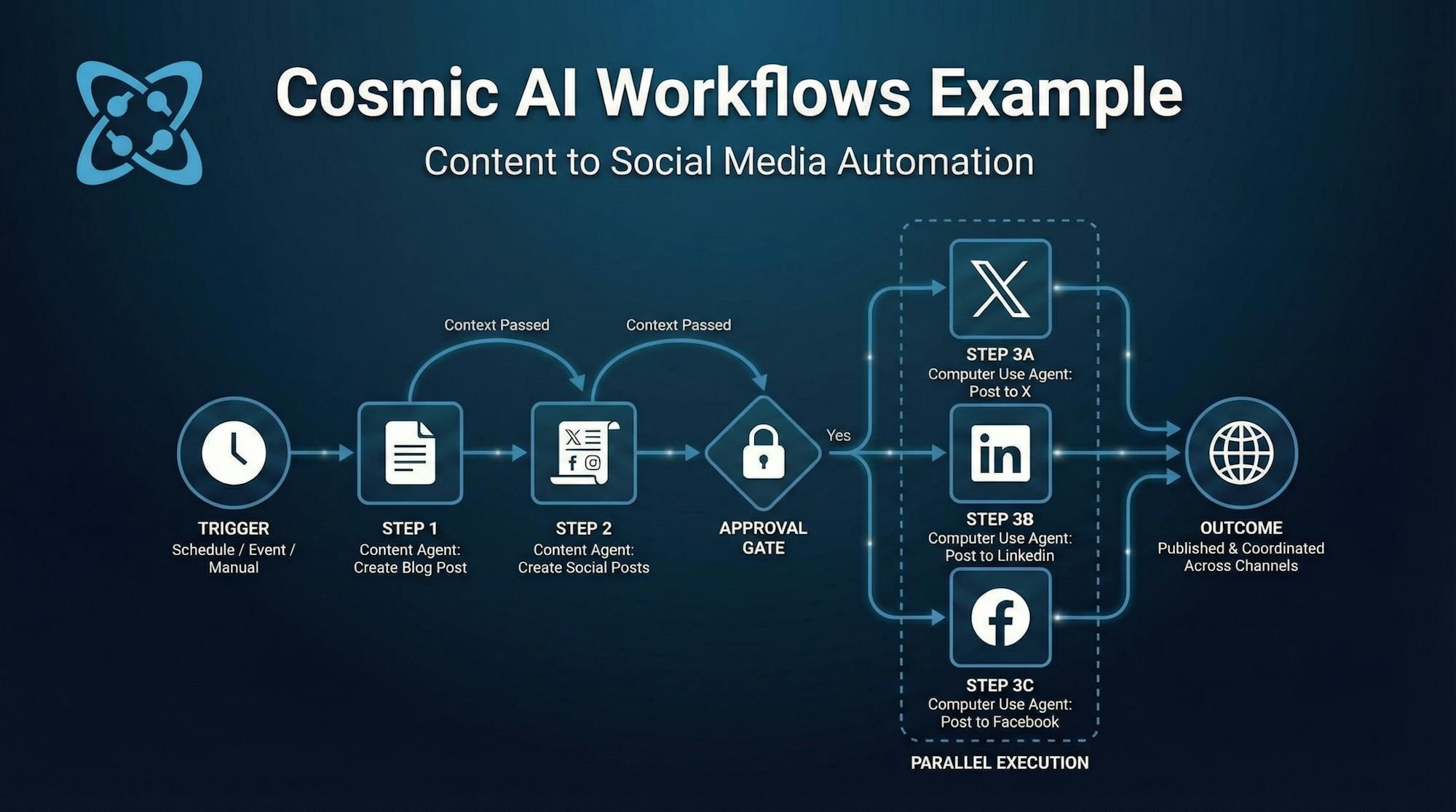
Consider a workflow that creates a blog post and then distributes it across social channels:
Step 1: Content Agent — "Create a blog post about our new product launch"
The Content Agent researches the topic, writes an SEO-optimized blog post, and publishes it to your CMS. The workflow captures the blog title, content, and URL.
Step 2: Content Agent — "Create social media posts for X, LinkedIn, and Facebook based on the blog post"
This agent receives the blog content from Step 1 and creates platform-specific social posts: a concise thread for X, a professional summary for LinkedIn, and an engaging post for Facebook.
Step 3: Computer Use Agent — "Post the X content to our X account"
The Computer Use Agent logs into X, navigates to the compose screen, and posts the X-optimized content created in Step 2.
Step 4: Computer Use Agent — "Post the LinkedIn content to our company LinkedIn page"
Running in parallel with Step 3, this agent handles the LinkedIn distribution using the LinkedIn-specific content.
Step 5: Computer Use Agent — "Post the Facebook content to our Facebook page"
Also running in parallel, this agent completes the distribution by posting to Facebook.
The workflow completes in minutes with a published blog post and coordinated social media presence across all channels — all from a single trigger.
Scheduling and Triggers
Workflows can run on your schedule or respond to events automatically:
Manual Execution
Trigger workflows on-demand from the dashboard with a single click.
Scheduled Execution
Set workflows to run automatically:
- Hourly — For time-sensitive monitoring tasks
- Daily — For regular content updates or code quality checks
- Weekly — For comprehensive reviews and reports
- Monthly — For periodic maintenance tasks
Configure timezone and specific start times for precise scheduling.
Event Triggers
Workflows can respond to CMS events automatically:
object.created— Trigger when new content is addedobject.edited— Respond to content updatesobject.deleted— Clean up related resourcesobject.published/object.unpublished— Sync with publication status
Filter by object type to trigger workflows only for specific content models.
Approval Gates
Add human-in-the-loop checkpoints for critical operations:
- Pause for review — Workflow execution pauses at approval gates
- Review context — See what previous steps accomplished before approving
- Resume or reject — Continue the workflow or cancel with one click
- Email notifications — Get notified when workflows need your attention
Approval gates are perfect for workflows that make significant changes, like publishing content or merging pull requests.
Real-Time Monitoring
Track workflow execution with comprehensive monitoring:
Execution Dashboard
View all running, completed, and scheduled workflows in one place. Filter by status, workflow type, or date range.
Step-by-Step Progress
Watch workflows execute in real-time with status updates for each step. See which step is currently running, which have completed, and which are pending.
Token Usage and Cost Tracking
Monitor resource consumption with real-time token tracking during execution. View input tokens and output tokens.
Error Handling
When steps fail, see detailed error messages and decide whether to retry, skip, or cancel. Failed steps don't necessarily stop the entire workflow — configure error handling per step.
Status Indicators
Clear visual indicators show workflow and step states:
- Pending, Running, Completed, Failed
- Waiting Approval (for approval gates)
- Paused, Cancelled, Skipped
Example Use Cases
Content Optimization Workflow
Runs every Monday at 2 AM
- Content Agent — Analyze 500+ articles for outdated content, broken links, and missing metadata
- Computer Use Agent — Validate external links and capture fresh screenshots
- Content Agent — Update flagged articles with corrections and new screenshots
- Approval Gate — Review changes before publishing
Result: Always-fresh content with 95% less manual work.
Feature Development Workflow
Triggered manually for new features
- Code Agent — Build the feature based on specifications, create PR
- Computer Use Agent — Run end-to-end tests and record demo video
- Content Agent — Generate documentation and changelog entry
- Approval Gate — Review PR, tests, and docs before merge
Result: Complete feature development in hours instead of days.
Blog Series Generation
Scheduled weekly
- Computer Use Agent — Research trending topics from industry sources
- Content Agent — Generate 5 SEO-optimized blog post drafts
- Content Agent — Create social media snippets for each post
- Approval Gate — Review and schedule posts for publication
Result: Consistent content pipeline with minimal effort.
Cross-Platform Publishing
Event-triggered on object.published
- Content Agent — Extract key points from published article
- Computer Use Agent — Download associated media assets
- Computer Use Agent — Upload to YouTube, create social posts
- Content Agent — Update CMS with cross-platform links
Result: One-click publishing to all channels.
Getting Started
- Navigate to AI Agents — Find the new Workflows section in your bucket navigation
- Create a Workflow — Set a name, description, and prompt to use for all steps
- Configure Steps — Add agent steps, set prompts, configure context passing
- Set Schedule — Choose manual, scheduled, or event-triggered execution
- Activate — Save and activate your workflow
Access Requirements: Workflows are available to users with Admin or Developer bucket roles. Editor and Contributor roles do not have access to workflow management.
Limits and Access
Usage Limits
- Number of Concurrent Agents and Workflows — Based on your plan tier
- Computer Use Agents — Requires Starter plan or higher
- Scheduled Workflows — Requires Starter plan or higher
What's Next
AI Workflows represents a fundamental shift in how you can leverage AI within Cosmic. Instead of individual task automation, you now have the power to automate entire projects and processes.
We're look forward to seeing what you build with Cosmic AI Workflows. Join the conversation on the Cosmic Discord server to share your feedback and see what others are building.
Continue Learning
Documentation
Related Articles
Ready to get started?
Build your next automation with Cosmic AI Workflows and start shipping faster.
Continue Learning

Claude Sonnet 5.5 vs Sonnet 5: What Changed, and Should You Switch?


Tony Spiro and Mia
October 6, 2026