
Tony Spiro
May 28, 2026
Most chat widgets on the web are disconnected from the product they sit on. They answer from a generic LLM with no knowledge of your actual content, pricing, or documentation. The result: hallucinated answers, frustrated users, and support tickets that never needed to exist.
Cosmic AI agents solve this at the infrastructure level. Because your agent lives inside your Cosmic project, it has direct read access to every object in your bucket: blog posts, docs, FAQs, product pages, and any other content type you define. No external vector database. No separate embedding pipeline. No syncing.
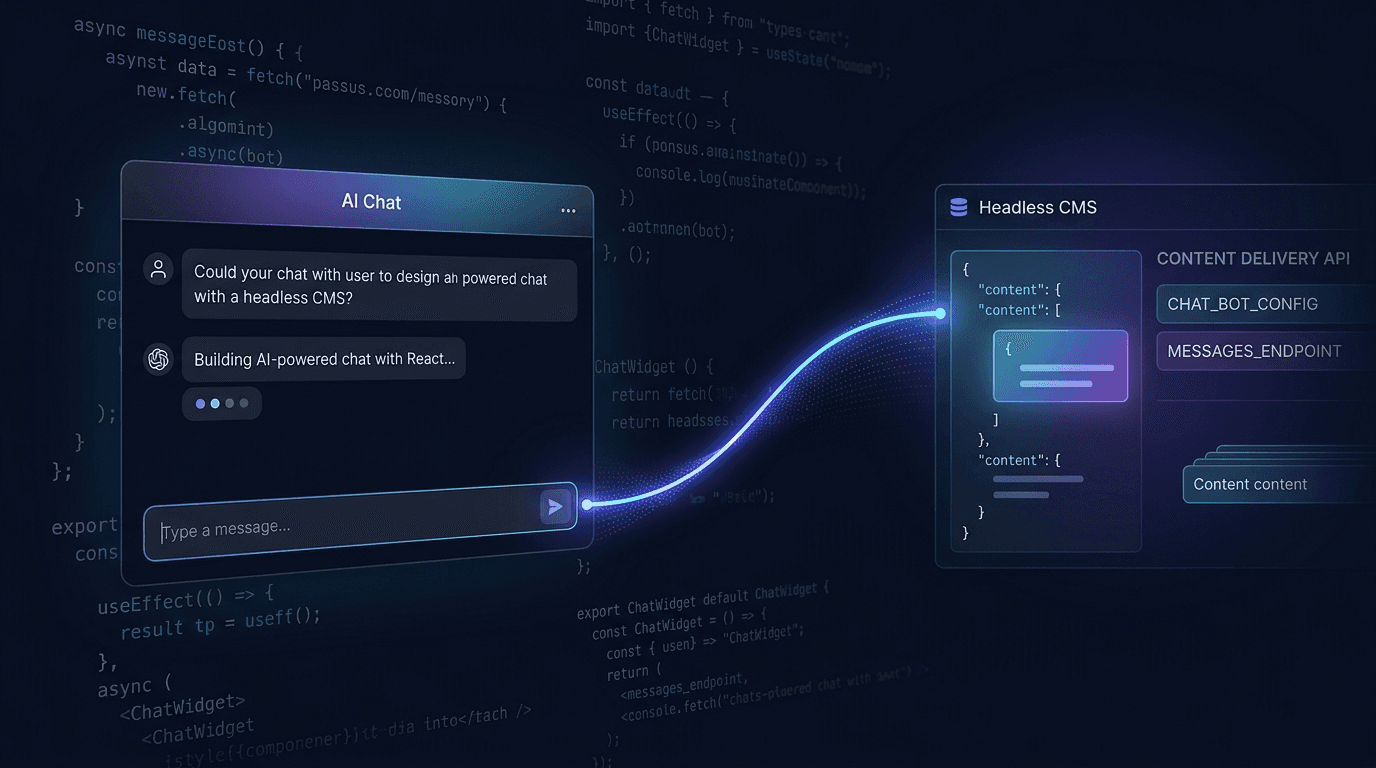
This tutorial walks through the anchor use case: building a website chat agent that answers visitor questions using your real CMS content, exposed via the Cosmic REST API and JavaScript/TypeScript SDK.
What We're Building
A Team Agent configured with:
- CMS Read access to your content bucket
- A REST API channel so your frontend can send messages and stream responses
- A persona prompt that keeps answers grounded in your actual content
- A streaming chat widget built in Next.js using the
@cosmicjs/sdk
By the end, visitors on your site can ask "What is your refund policy?" or "How do I set up webhooks?" and get accurate, sourced answers pulled from your real CMS objects.
Step 1: Create the Team Agent
In your Cosmic project dashboard:
- Navigate to Team Agents in the project sidebar
- Click Create Team Agent
- Give it a name (e.g. "Site Assistant")
- Set the persona prompt (see below)
- Under Channels, enable REST API
- Under Capabilities, enable CMS Read
- Save the agent
Persona prompt example:
You are a helpful assistant for [Your Company]. You answer questions using the content in our CMS bucket: documentation, blog posts, FAQs, and product pages.

Rules:
- Only answer based on content you can find in the CMS. If you cannot find a relevant answer, say so honestly and suggest the user contact support.
- Keep answers concise and accurate. Quote directly from CMS content when helpful.
- Never fabricate pricing, feature availability, or technical details.
- If asked about something outside your knowledge base, direct the user to the relevant docs page or contact form.
After saving, copy the Agent ID from the agent detail page. You will need it for the API calls.
Step 2: Get a Personal Access Token
All REST API calls to your agent require a Personal Access Token.
- Go to Account Settings > API Tokens
- Click Create Token
- Give it a descriptive name (e.g. "Site Chat Widget")
- Copy the token. You will only see it once.
Store it as an environment variable in your project:
COSMIC_AGENT_TOKEN=cos_your_token_here
COSMIC_AGENT_ID=your_agent_id_here
Step 3: Create a Next.js API Route
Never expose your Personal Access Token to the browser. Instead, create a server-side API route that proxies messages to the Cosmic agent.
// app/api/chat/route.ts
import { NextRequest } from 'next/server';

const AGENT_ID = process.env.COSMIC_AGENT_ID!;
const AGENT_TOKEN = process.env.COSMIC_AGENT_TOKEN!;

export async function POST(req: NextRequest) {
  const { message, conversation_id } = await req.json();

  const response = await fetch(
    `https://dapi.cosmicjs.com/v3/ai/agents/${AGENT_ID}/messages`,
    {
      method: 'POST',
      headers: {
        'Authorization': `Bearer ${AGENT_TOKEN}`,
        'Content-Type': 'application/json',
      },
      body: JSON.stringify({
        message,
        conversation_id,
        stream: true,
      }),
    }
  );

  // Stream the SSE response directly to the browser
  return new Response(response.body, {
    headers: {
      'Content-Type': 'text/event-stream',
      'Cache-Control': 'no-cache',
      'Connection': 'keep-alive',
    },
  });
}
This route receives the user message from your frontend, forwards it to the Cosmic agent with streaming enabled, and pipes the Server-Sent Events stream back to the browser.
Step 4: Build the Chat Widget Component
// components/ChatWidget.tsx
'use client';

import { useState, useRef, useEffect } from 'react';

type Message = {
  role: 'user' | 'assistant';
  content: string;
};

export function ChatWidget() {
  const [messages, setMessages] = useState<Message[]>([]);
  const [input, setInput] = useState('');
  const [isLoading, setIsLoading] = useState(false);
  const [conversationId, setConversationId] = useState<string | null>(null);
  const bottomRef = useRef<HTMLDivElement>(null);

  useEffect(() => {
    bottomRef.current?.scrollIntoView({ behavior: 'smooth' });
  }, [messages]);

  async function sendMessage() {
    if (!input.trim() || isLoading) return;

    const userMessage = input.trim();
    setInput('');
    setIsLoading(true);

    setMessages((prev) => [...prev, { role: 'user', content: userMessage }]);
    setMessages((prev) => [...prev, { role: 'assistant', content: '' }]);

    try {
      const res = await fetch('/api/chat', {
        method: 'POST',
        headers: { 'Content-Type': 'application/json' },
        body: JSON.stringify({
          message: userMessage,
          conversation_id: conversationId,
        }),
      });

      const reader = res.body!.getReader();
      const decoder = new TextDecoder();
      let fullText = '';

      while (true) {
        const { done, value } = await reader.read();
        if (done) break;

        const chunk = decoder.decode(value);
        const lines = chunk.split('\n');

        for (const line of lines) {
          if (!line.startsWith('data: ')) continue;
          const data = JSON.parse(line.slice(6));

          if (data.type === 'info' && data.conversation_id) {
            setConversationId(data.conversation_id);
          }

          if (data.type === 'text_delta') {
            fullText = data.fullText;
            setMessages((prev) => [
              ...prev.slice(0, -1),
              { role: 'assistant', content: fullText },
            ]);
          }
        }
      }
    } catch (err) {
      console.error('Chat error:', err);
    } finally {
      setIsLoading(false);
    }
  }

  return (
    <div className="chat-widget">
      <div className="messages">
        {messages.map((msg, i) => (
          <div key={i} className={`message ${msg.role}`}>
            {msg.content}
          </div>
        ))}
        <div ref={bottomRef} />
      </div>
      <div className="input-row">
        <input
          value={input}
          onChange={(e) => setInput(e.target.value)}
          onKeyDown={(e) => e.key === 'Enter' && sendMessage()}
          placeholder="Ask anything..."
          disabled={isLoading}
        />
        <button onClick={sendMessage} disabled={isLoading}>
          {isLoading ? 'Thinking...' : 'Send'}
        </button>
      </div>
    </div>
  );
}
The widget maintains conversation_id so the agent remembers context across the full conversation, not just the last message.
Step 5: Read Your CMS Content with the SDK
Your agent already has CMS Read access and will fetch your content autonomously when a visitor asks a question. But you can also pre-populate the widget with content suggestions or show related articles alongside the chat. Here's how to pull content with the TypeScript SDK:
import { createBucketClient } from '@cosmicjs/sdk';

const cosmic = createBucketClient({
  bucketSlug: process.env.COSMIC_BUCKET_SLUG!,
  readKey: process.env.COSMIC_READ_KEY!,
});

// Fetch FAQ objects to seed suggested questions
export async function getFAQs() {
  const { objects } = await cosmic.objects
    .find({ type: 'faqs' })
    .props(['title', 'metadata.answer'])
    .limit(5);

  return objects;
}

// Fetch docs pages for a "Related articles" panel
export async function getRelatedDocs(query: string) {
  const { objects } = await cosmic.objects
    .find({ type: 'docs-pages' })
    .props(['title', 'slug', 'metadata.teaser'])
    .limit(3);

  return objects;
}
Combining the SDK (for structured content display) with the agent API (for conversational answers) gives you a complete knowledge base experience.
How the Agent Uses Your CMS Content
When a visitor sends a message, here is what happens under the hood:
- Your Next.js API route forwards the message to the Cosmic agent REST API
- The agent reads its system prompt (your persona) and the conversation history
- With CMS Read enabled, the agent calls
get_objectsandget_object_typesto find relevant content in your bucket - It synthesizes an answer grounded in your actual objects and streams the response back
conversation_idkeeps the thread continuous so the agent remembers earlier questions in the same session
The agent does not guess or hallucinate. If it cannot find relevant content, it says so, because your persona prompt tells it to.
Taking It Further: AI Context
For even more precise answers, use AI Context in the agent configuration. You can pin specific objects (your top 10 FAQ answers, your pricing page object, your docs index) so the agent always has them in context without needing to search on every message.
To configure AI Context:
- Edit your Team Agent
- Click Configure AI Context
- Add specific objects, object types, or URLs
- Save
This is particularly useful for pricing questions, where you want the agent to always have your current plan details available without making an extra CMS read call.
What to Build Next
This is the anchor use case, but the same pattern powers a lot more:
- Customer Support Agent (WhatsApp/Telegram): Connect the same agent to WhatsApp so users can get help without leaving their preferred messaging app
- Internal Knowledge Base Agent (Slack): Connect to Slack so your team can ask "what did we publish last week?" or "what's the pricing for Enterprise?" directly in your workspace
- E-commerce Product Assistant: Give the agent read access to a products bucket so shoppers can ask about availability, specs, and shipping without leaving the product page
- Event-Triggered Content Writer: A Content Agent that fires on
Object Publishedand auto-generates social posts, meta descriptions, or translations for every new piece of content
Each of these uses the same agent infrastructure. The only differences are the persona prompt, the capabilities you enable, and the channel you connect.
Get Started
Cosmic AI agents are available on all paid plans, with Team and Business plans supporting the volume of concurrent agents most production apps need.
If you build something with this pattern, we want to hear about it. The most interesting agent use cases from the community get featured in the Cosmic Rundown.
Continue Learning
Announcing the Cosmic AI Support Agent


Tony Spiro and Mia
October 5, 2026