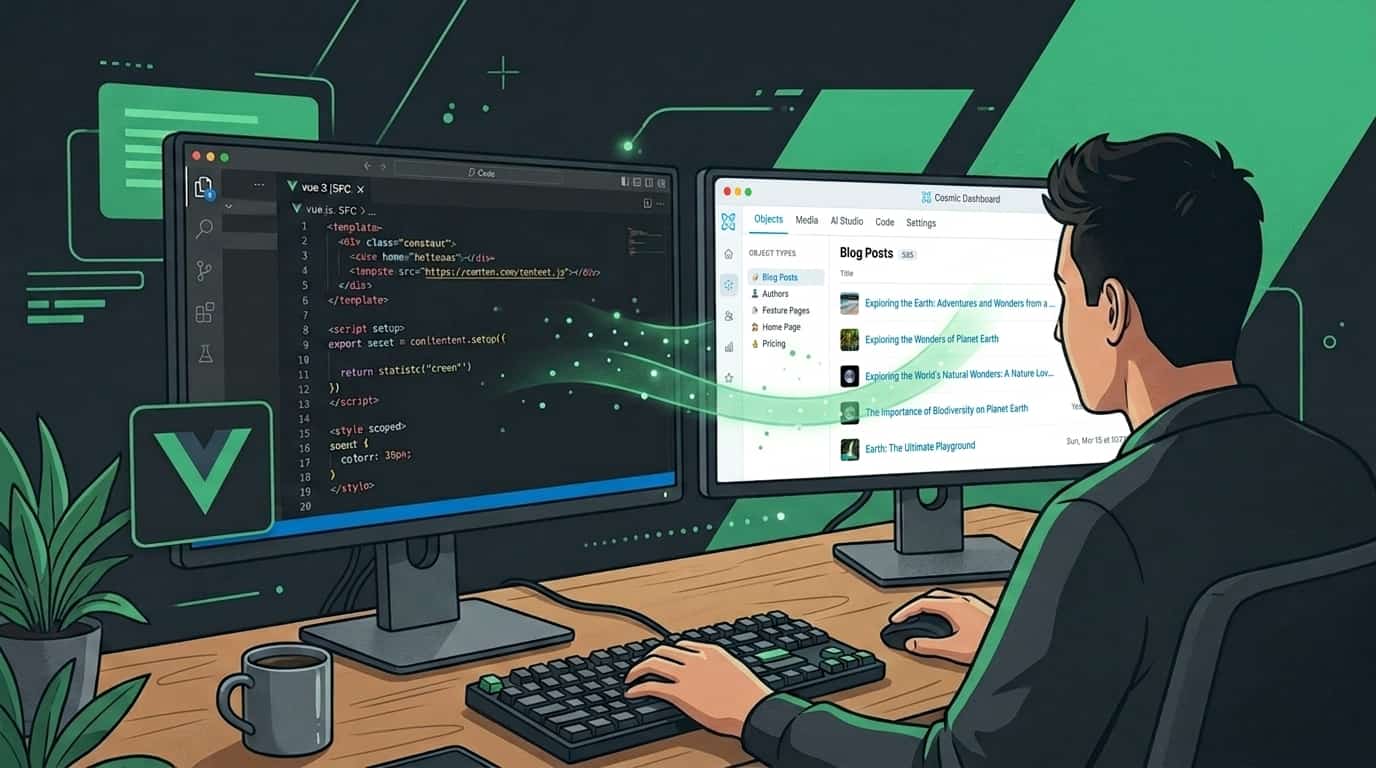
How to Build a Vue 3 App with a Headless CMS (Step-by-Step Tutorial)

Cosmic
April 1, 2026
If you've been building Vue 3 apps and managing content in markdown files, Google Docs, or a tangled WordPress backend, a headless CMS is worth a serious look. It gives your content team a clean editing interface while giving you full control over how and where that content is rendered.
This tutorial walks through how to connect Cosmic to a Vue 3 app. By the end, you'll have a working Single File Component (SFC) that fetches and renders content from Cosmic, and you'll understand the core patterns for building content-driven Vue apps at scale.
Looking for a Vue-specific overview first? Check out our headless CMS for Vue page for a quick rundown of why Cosmic is a great fit for Vue projects.
Why use a headless CMS with Vue 3?
Vue 3 is a fantastic frontend framework, but it doesn't make opinions about where your content comes from. That's intentional. Headless CMSes fill that gap by providing:
- A structured content API (REST or GraphQL) your Vue app can query
- An editing UI for non-developers to manage content without touching code
- Media handling, localization, and role-based access built in
- Framework-agnostic delivery, so your content works in Vue, Nuxt, a mobile app, or anywhere else
This is exactly the pattern used by Vuetify, the popular Vue component library. They use Cosmic to manage their documentation and content, keeping their developer-facing content decoupled from their codebase.
What we're building
A Vue 3 app that:
- Connects to Cosmic via the official JavaScript SDK
- Fetches a list of blog posts (or any content type) from your Cosmic bucket
- Renders the posts in a Vue 3 SFC using the Composition API
Prerequisites
- Node.js 18+
- Basic familiarity with Vue 3 and the Composition API
- A free Cosmic account (takes 30 seconds)
Step 1: Set up a Cosmic bucket
- Sign up at cosmicjs.com and create a new bucket.
- In your bucket, create an Object Type called
postswith these metafields:title(text)slug(auto-generated)content(rich text or markdown)cover_image(file)
- Add a couple of sample posts so you have something to render.
- Go to Settings > API Keys and copy your Bucket Slug, Read Key.
Step 2: Create a Vue 3 project
If you don't have a project yet, scaffold one with Vite:
npm create vite@latest my-cosmic-app -- --template vue
cd my-cosmic-app
npm install
Step 3: Install the Cosmic SDK
Cosmic has an official JavaScript SDK that works in Node.js and the browser.
npm install @cosmicjs/sdk
Step 4: Configure your environment variables
Create a .env file in the project root:
VITE_COSMIC_BUCKET_SLUG=your-bucket-slug
VITE_COSMIC_READ_KEY=your-read-key
Never commit your read key to version control. Add .env to your .gitignore.
Step 5: Create a Cosmic client module
Create src/lib/cosmic.js:
import { createBucketClient } from '@cosmicjs/sdk'

export const cosmic = createBucketClient({
  bucketSlug: import.meta.env.VITE_COSMIC_BUCKET_SLUG,
  readKey: import.meta.env.VITE_COSMIC_READ_KEY,
})
This keeps your client configuration in one place. Every component that needs data imports from here.
Step 6: Build the Posts component
Create src/components/PostList.vue:
<script setup>
import { ref, onMounted } from 'vue'
import { cosmic } from '../lib/cosmic'

const posts = ref([])
const loading = ref(true)
const error = ref(null)

onMounted(async () => {
  try {
    const { objects } = await cosmic.objects
      .find({ type: 'posts' })
      .props(['title', 'slug', 'metadata', 'created_at'])
      .sort('-created_at')
      .limit(10)

    posts.value = objects
  } catch (err) {
    error.value = 'Failed to load posts. Check your Cosmic credentials.'
    console.error(err)
  } finally {
    loading.value = false
  }
})
</script>

<template>
  <div class="post-list">
    <div v-if="loading" class="loading">Loading posts...</div>

    <div v-else-if="error" class="error">{{ error }}</div>

    <ul v-else>
      <li v-for="post in posts" :key="post.slug" class="post-item">
        <img
          v-if="post.metadata?.cover_image"
          :src="post.metadata.cover_image.imgix_url + '?w=400&auto=format'"
          :alt="post.title"
          width="400"
        />
        <h2>{{ post.title }}</h2>
        <p>{{ new Date(post.created_at).toLocaleDateString() }}</p>
        <router-link :to="`/posts/${post.slug}`">Read more</router-link>
      </li>
    </ul>
  </div>
</template>
A few things worth calling out here:
.props()limits which fields are returned by the API. Only request what you need. Smaller payloads mean faster load times..sort('-created_at')sorts newest first. Prefix a field with-for descending order.imgix_urlis a built-in image transformation URL. Append query params like?w=400&auto=formatto resize and optimize images on the fly with no extra tooling.v-if/v-else-if/v-elsehandles all three states cleanly: loading, error, and data.
Step 7: Fetch a single post by slug
When a user clicks "Read more", you'll need to fetch the full post. Create src/components/PostDetail.vue:
<script setup>
import { ref, onMounted } from 'vue'
import { useRoute } from 'vue-router'
import { cosmic } from '../lib/cosmic'

const route = useRoute()
const post = ref(null)
const loading = ref(true)

onMounted(async () => {
  const { object } = await cosmic.objects
    .findOne({
      type: 'posts',
      slug: route.params.slug,
    })
    .props(['title', 'metadata', 'created_at'])

  post.value = object
  loading.value = false
})
</script>

<template>
  <article v-if="!loading && post">
    <h1>{{ post.title }}</h1>
    <img
      v-if="post.metadata?.cover_image"
      :src="post.metadata.cover_image.imgix_url + '?w=1200&auto=format'"
      :alt="post.title"
    />
    <!-- Render HTML content safely -->
    <div v-html="post.metadata?.content" />
  </article>
</template>
Security note: Only use
v-htmlwith content you control, like content you've authored in your own CMS. Never use it with raw user-submitted data.
Step 8: Wire it together in App.vue
Update src/App.vue to include your new component:
<script setup>
import PostList from './components/PostList.vue'
</script>

<template>
  <main>
    <h1>My Blog</h1>
    <PostList />
  </main>
</template>
Run npm run dev and open http://localhost:5173. Your posts from Cosmic should render immediately.
Using the REST API directly
Prefer to skip the SDK and use the REST API directly? That works too, and is a good option if you're on a tight bundle budget or already using a fetch wrapper.
// src/lib/cosmicApi.js
const BUCKET_SLUG = import.meta.env.VITE_COSMIC_BUCKET_SLUG
const READ_KEY = import.meta.env.VITE_COSMIC_READ_KEY
const BASE_URL = `https://api.cosmicjs.com/v3/buckets/${BUCKET_SLUG}`

export async function getPosts() {
  const params = new URLSearchParams({
    read_key: READ_KEY,
    type: 'posts',
    props: 'title,slug,metadata,created_at',
    sort: '-created_at',
    limit: '10',
  })

  const res = await fetch(`${BASE_URL}/objects?${params}`)

  if (!res.ok) throw new Error(`Cosmic API error: ${res.status}`)

  const data = await res.json()
  return data.objects
}
Then use it in your component exactly as before, replacing the SDK call with getPosts().
Nuxt 3 bonus: server-side fetching
If you're using Nuxt 3, swap onMounted for useAsyncData to fetch content server-side:
<script setup>
import { cosmic } from '~/lib/cosmic'

const { data: posts } = await useAsyncData('posts', () =>
  cosmic.objects
    .find({ type: 'posts' })
    .props(['title', 'slug', 'metadata', 'created_at'])
    .sort('-created_at')
    .then((res) => res.objects)
)
</script>
This runs on the server, so content is included in the HTML response. Better SEO, faster first paint.
What to build next
You've got the core pattern down. Here are a few natural next steps:
- Add Vue Router for client-side navigation between posts
- Set up preview mode so editors can preview unpublished content before publishing
- Use Cosmic's image transformation API for responsive images with srcset
- Add content localization if you're building for multiple markets
- Connect a Nuxt 3 project for full SSR and static generation support
Why Cosmic for Vue projects
Cosmic is built API-first, which means it works naturally with any JavaScript framework. There's no opinionated page router to fight, no plugin system to configure, and no CMS-specific templating language to learn. You get a clean JSON API and you build the frontend your way.
This is why teams like Vuetify have chosen Cosmic to manage their content. When your framework is already beloved by developers, your CMS should stay out of the way.
Explore the headless CMS for Vue page for more on how Cosmic fits into a Vue architecture.
Get started
Ready to try it yourself? Create a free Cosmic account and have a working Vue 3 integration running in minutes. The free plan includes everything you need to get started, with no credit card required.
Want to talk through your project? Book a quick intro with Tony, Cosmic's CEO, and get personalized advice for your use case.