
Tony Spiro
April 11, 2026
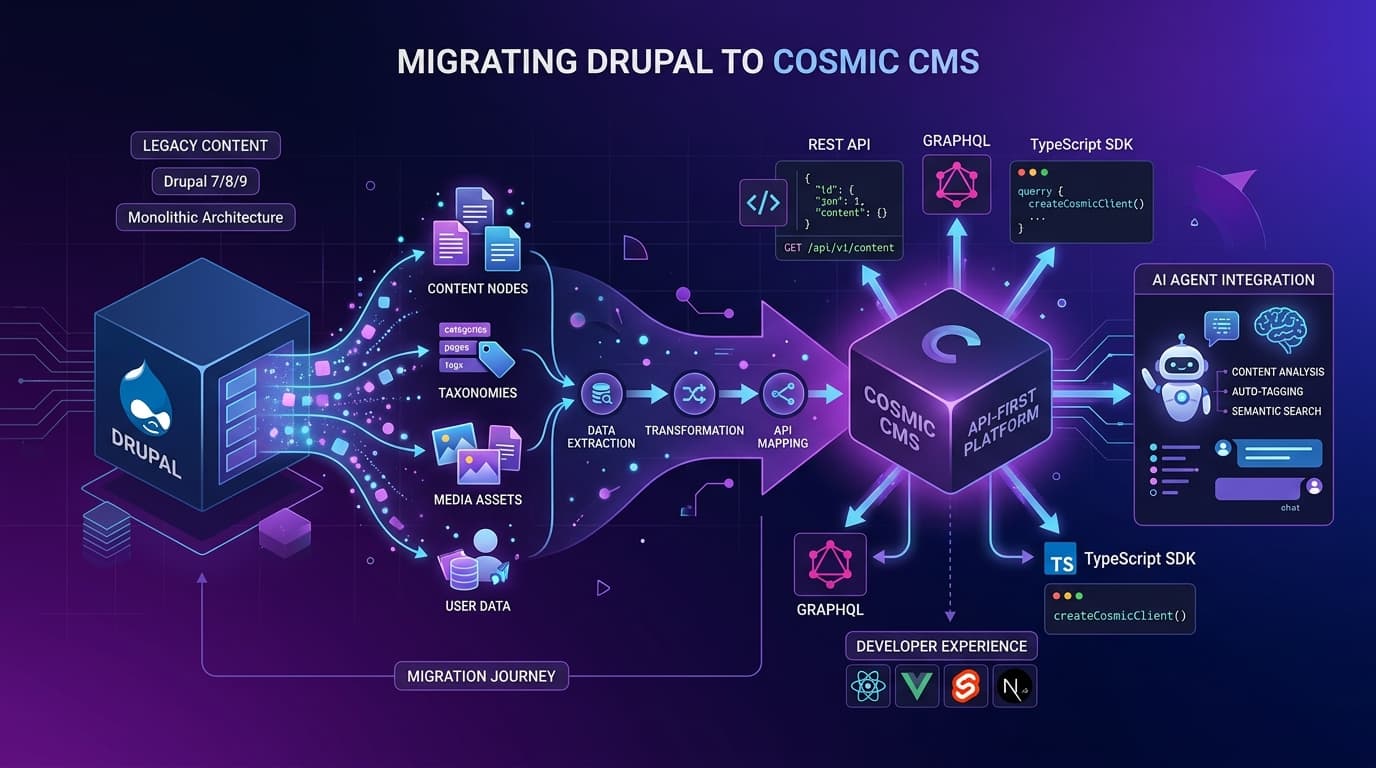
Drupal served a generation of content teams well. But between the PHP overhead, major-version upgrade cycles, and the complete absence of native AI capabilities, many teams are now making the move to a modern headless CMS. This guide walks you through migrating from Drupal to Cosmic step by step, with real TypeScript code you can run today.
Why Teams Are Leaving Drupal Now
Drupal 7 reached end-of-life in January 2025. That forced thousands of organizations into a choice: invest heavily in upgrading to Drupal 10, or use the moment as an opportunity to rethink the architecture entirely.
The case for moving on is strong:
- Module sprawl and complexity. Most production Drupal sites run dozens of contrib modules. Each one is a maintenance burden and a potential security surface.
- Dev-only content changes. Even simple schema changes, adding a field to a content type, typically require a developer, a code deployment, and a cache flush.
- No native AI. Drupal was designed long before LLMs. Every AI integration is a custom module or a fragile third-party connector.
- Infrastructure overhead. A production Drupal site needs a server (or managed host), a MySQL/PostgreSQL database, and caching layers like Varnish or Redis.
Cosmic removes all of that. Fully managed cloud, REST API, TypeScript SDK, built-in AI Agents, and a visual schema builder. Let's move your content.
Drupal to Cosmic Concept Mapping
Before writing a single line of code, it helps to understand how Drupal's concepts translate to Cosmic's model:
| Drupal Concept | Cosmic Equivalent | Notes |
|---|---|---|
| Content Types | Object Types | Defined in Cosmic's schema builder, no code required |
| Nodes | Objects | Each piece of content is an Object |
| Fields | Metafields | Text, number, date, file, select, relationship, and more |
| Taxonomies | Select/multi-select metafields or related Objects | Flat taxonomies become select fields; hierarchical ones become related Object Types |
| Media | Cosmic Media (imgix CDN) | Upload once, serve globally via imgix |
| Views | REST API queries with filters | Use ?query, ?type, ?limit, ?sort params on the REST API |
| Modules | Integrations / Cosmic SDK | Webhooks, localization, revision history available as add-ons |
| Roles & Permissions | Team member roles in Cosmic | Owner, Admin, Editor |
Step-by-Step Migration Guide
Step 1: Audit Your Drupal Content Model
Before you export anything, document what you have.
In Drupal, navigate to Structure > Content Types and list every content type. For each, note:
- All field names, types, and cardinality (single vs. multiple values)
- Which fields are required
- Any taxonomy references
- Any entity references (related content)
You can also query Drupal's REST API (if enabled) to get a machine-readable list:
curl -H "Accept: application/json" \
  https://your-drupal-site.com/jsonapi/node_type/node_type
Create a spreadsheet mapping each Drupal content type and field to its Cosmic equivalent. This is your migration blueprint.
Step 2: Create Your Cosmic Object Types
Sign up at cosmicjs.com and create a new Bucket.
For each Drupal content type, create a matching Object Type in Cosmic. You can do this in the Cosmic dashboard (no code required) or via the REST API.
Here's an example using the Cosmic TypeScript SDK to create an Object Type programmatically:
import Cosmic from 'cosmicjs';

const cosmic = Cosmic();
const bucket = cosmic.bucket({
  slug: 'your-bucket-slug',
  write_key: process.env.COSMIC_WRITE_KEY,
});

// Example: Create an "Articles" object type matching Drupal's "article" content type
// Object types are created in the Cosmic dashboard or via the API.
// Use the dashboard's schema builder for the fastest setup.
For most migrations, the visual schema builder in the Cosmic dashboard is the fastest path. Map each Drupal field type like this:
| Drupal Field Type | Cosmic Metafield Type |
|---|---|
| Text (plain) | text |
| Text (long) | textarea or markdown |
| Text (formatted) | html-textarea |
| Integer / Decimal | number |
| Boolean | switch |
| Date | date |
| Image | file (with media_validation_type: image) |
| File | file |
| Entity reference (single) | object |
| Entity reference (multiple) | objects |
| List (text) | select or multi-select |
| Taxonomy term reference | select or related objects |
Step 3: Export Your Drupal Content
Enable Drupal's JSON:API module (included in Drupal 8.7+ core) if it isn't already active. Then export your nodes:
# Export all article nodes
curl -H "Accept: application/json" \
  "https://your-drupal-site.com/jsonapi/node/article?page[limit]=50" \
  -o articles-page-1.json

# Paginate through all records using the 'next' link in the response
For large datasets, write a script to paginate through all records and save them to local JSON files. Here's a TypeScript utility:
import fs from 'fs';
import fetch from 'node-fetch';

async function exportDrupalContent(contentType: string, baseUrl: string) {
  const results: any[] = [];
  let url: string | null =
    `${baseUrl}/jsonapi/node/${contentType}?page[limit]=50`;

  while (url) {
    const response = await fetch(url, {
      headers: { Accept: 'application/json' },
    });
    const data: any = await response.json();
    results.push(...data.data);
    url = data.links?.next?.href ?? null;
    console.log(`Exported ${results.length} ${contentType} nodes...`);
  }

  fs.writeFileSync(
    `./export/${contentType}.json`,
    JSON.stringify(results, null, 2)
  );
  console.log(`Done. Total: ${results.length} records.`);
}

exportDrupalContent('article', 'https://your-drupal-site.com');
Step 4: Import Content to Cosmic via the REST API
With your exported JSON in hand, write an import script using the Cosmic TypeScript SDK:
import Cosmic from 'cosmicjs';
import articles from './export/article.json';

const cosmic = Cosmic();
const bucket = cosmic.bucket({
  slug: process.env.COSMIC_BUCKET_SLUG!,
  write_key: process.env.COSMIC_WRITE_KEY!,
});

async function importArticles() {
  for (const node of articles) {
    const attrs = node.attributes;

    try {
      await bucket.objects.insertOne({
        title: attrs.title,
        type: 'articles', // your Cosmic Object Type slug
        status: attrs.status ? 'published' : 'draft',
        metadata: {
          body: attrs.body?.processed ?? '',
          teaser: attrs.field_summary?.value ?? '',
          published_date: attrs.created,
          // Map additional fields as needed
        },
      });
      console.log(`Imported: ${attrs.title}`);
    } catch (err) {
      console.error(`Failed: ${attrs.title}`, err);
    }

    // Respect rate limits
    await new Promise((r) => setTimeout(r, 200));
  }
}

importArticles();
Tips:
- Run the import in batches of 50-100 objects at a time
- Log successes and failures separately so you can re-run failures without duplicating successful imports
- Use
--dry-runflags in your script during testing
Step 5: Migrate Media Files
Drupal stores media files locally or on a CDN. Cosmic uses imgix for global media delivery.
Here's how to migrate your media:
import Cosmic from 'cosmicjs';
import fetch from 'node-fetch';
import FormData from 'form-data';

const cosmic = Cosmic();
const bucket = cosmic.bucket({
  slug: process.env.COSMIC_BUCKET_SLUG!,
  write_key: process.env.COSMIC_WRITE_KEY!,
});

async function migrateMedia(drupalFileUrl: string, filename: string) {
  // Download the file from Drupal
  const response = await fetch(drupalFileUrl);
  const buffer = await response.buffer();

  // Upload to Cosmic
  const form = new FormData();
  form.append('media', buffer, { filename });

  const result = await bucket.media.insertOne({ media: form });
  return result.media.imgix_url;
}

// Usage during content import:
// const cosmicImageUrl = await migrateMedia(
//   'https://your-drupal-site.com/sites/default/files/image.jpg',
//   'image.jpg'
// );
Once uploaded to Cosmic, every image is automatically served through imgix with on-the-fly resizing, format conversion (WebP, AVIF), and global CDN delivery.
Step 6: Set Up Webhooks and Rebuild Your Frontend
Cosmic's webhook system (available as an add-on) lets you trigger rebuilds on your frontend whenever content changes. Set up webhooks in Bucket Settings > Webhooks.
For a Next.js frontend:
// pages/api/revalidate.ts
import type { NextApiRequest, NextApiResponse } from 'next';

export default async function handler(
  req: NextApiRequest,
  res: NextApiResponse
) {
  if (req.headers['x-cosmic-secret'] !== process.env.REVALIDATION_SECRET) {
    return res.status(401).json({ message: 'Invalid secret' });
  }

  const { slug } = req.body?.data?.object ?? {};

  if (slug) {
    await res.revalidate(`/articles/${slug}`);
    return res.json({ revalidated: true, slug });
  }

  return res.status(400).json({ message: 'No slug found' });
}
Cosmic works with all major frontend frameworks: Next.js, React, Vue, Nuxt, Astro, Remix, and Svelte. Check the Cosmic docs for framework-specific starters.
Step 7: Test, Redirect, and Go Live
Before flipping DNS:
- Compare content counts between Drupal and Cosmic to verify completeness
- Spot-check 10-20 objects across different content types
- Verify all media URLs resolve via imgix
- Test your frontend against the Cosmic API in a staging environment
- Set up 301 redirects from old Drupal URLs to new paths
- Update your DNS or CDN configuration
- Monitor API response times (target: under 100ms)
Migration Checklist
Use this checklist to track your Drupal to Cosmic migration:
- Audit all Drupal content types and fields
- Map Drupal fields to Cosmic metafield types
- Create all Object Types in Cosmic
- Set up Cosmic Bucket and API keys
- Export all Drupal nodes via JSON:API
- Export all Drupal taxonomy terms
- Export all media files and file metadata
- Import content to Cosmic via TypeScript SDK
- Migrate media files to Cosmic Media (imgix)
- Verify object counts match between Drupal and Cosmic
- Spot-check content for formatting issues
- Build or adapt frontend to use Cosmic REST API
- Set up Cosmic webhooks for incremental rebuilds
- Configure 301 redirects for all changed URLs
- Test full site in staging environment
- Set DNS TTL low before cutover
- Flip DNS to new frontend
- Monitor error rates and API latency post-launch
- Decommission or archive Drupal server
What You Get on the Other Side
After migrating to Cosmic, your team gets:
- A clean REST API with sub-100ms response times and 99.9% uptime SLA
- TypeScript SDK and CLI for fast local development
- Built-in AI Agents that live in Slack, WhatsApp, and Telegram
- MCP Server for native AI tooling integration
- imgix CDN for all your media with on-the-fly transformations
- A visual schema builder so editors can propose content model changes without involving a developer
- No more major version migrations. Ever.
Pricing After the Migration
Here's what Cosmic costs after you leave Drupal behind:
| Plan | Price | Buckets | Team Members | Objects |
|---|---|---|---|---|
| Free | $0/month | 1 | 2 | 1,000 |
| Builder | $99/month | 2 | 3 | 5,000 |
| Team | $299/month | 3 | 5 | 20,000 |
| Business | $499/month | 5 | 10 | 50,000 |
| Enterprise | Custom | Custom | Custom | Custom |
Additional users are $29/user/month. No server bills, no hosting costs, no module licensing fees.
Ready to Start?
Sign up free and have your first Object Type created in minutes. Need help scoping a large migration? Book a call with Tony.
Related Resources
Continue Learning

Claude Sonnet 5.5 vs Sonnet 5: What Changed, and Should You Switch?


Tony Spiro and Mia
October 6, 2026

Announcing the Cosmic AI Support Agent
Tony Spiro and Mia
October 5, 2026