
Cosmic
April 20, 2026
We just shipped a batch of updates focused on making the Cosmic dashboard easier to navigate and lay out the way you want. The biggest change is structural: a clearer information hierarchy running top-to-bottom through the entire dashboard.
A Clearer Information Hierarchy: Workspace > Project > Bucket
Cosmic has always had three levels of organization: Workspaces contain Projects, and Projects contain Buckets. The old dashboard didn't make that hierarchy obvious. It was easy to lose track of which Workspace you were in, which Project you were looking at, and which Bucket was active.
We reorganized the top nav around that hierarchy. The top bar is now a single, left-to-right breadcrumb:
Workspace > Project > Bucket
- Click the Workspace at the far left to switch between Workspaces, go to your Workspace home, or create a new one.
- The Project name sits to the right of the Workspace with its own dropdown for jumping between Projects.
- The active Bucket name sits to the right of the Project with a dropdown to switch between the Buckets inside it.
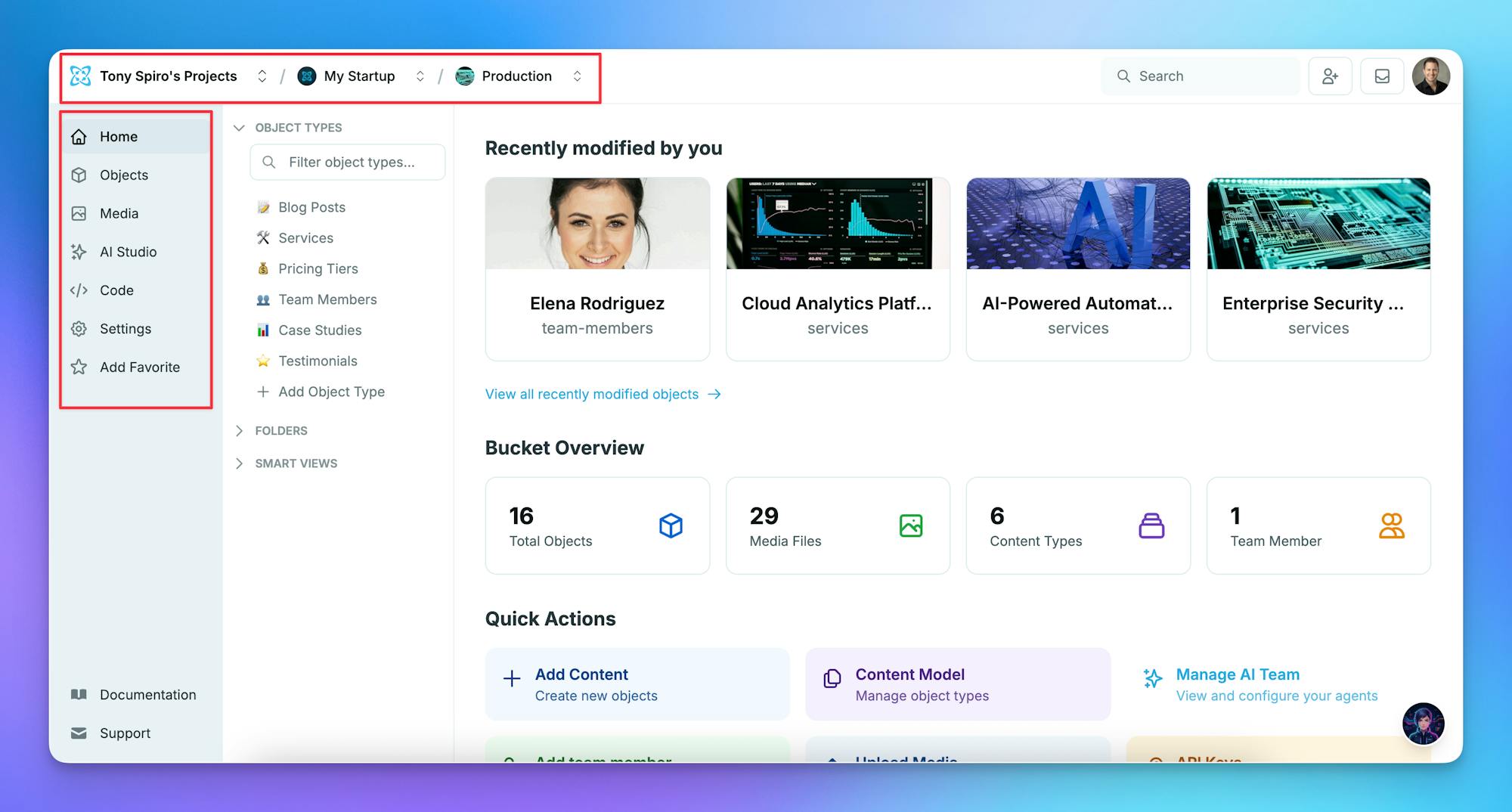
One glance at the top bar and you know exactly where you are and how to move laterally at any level. No more hunting through menus.
Bucket Contents Moved to the Left Sidebar
The other big structural change: everything inside a Bucket now lives in the left sidebar.
When you're in a Bucket, the left sidebar shows the full Bucket navigation:
- Home
- Objects
- Media
- AI Studio
- Code
- Settings
- plus your Favorites
Previously, some of this content was split across secondary nav patterns and was harder to scan. Moving it all to the left rail means Bucket navigation is always in the same place, always visible, and follows the natural top-to-bottom reading flow from the breadcrumb.
Pair that with the new top bar and you get a dashboard with clear horizontal hierarchy at the top (Workspace > Project > Bucket) and clear vertical navigation on the left (everything inside the current Bucket).
Resizable Sidebars
Both the main sidebar and the secondary (page-level) sidebar are now resizable.
- Drag the right edge to resize. The cursor turns into a column resize indicator so you know the handle is live.
- Drag past the threshold to collapse the sidebar entirely. Drag back out to expand it again.
- Click the handle to toggle collapse without resizing.
- Widths persist. Your preferred sidebar widths are saved locally and restored the next time you load the dashboard.
The collapsed state got upgraded too. The thin 32px expand strip is now a drag handle itself: hover it, see the resize cursor, and drag right to pop the sidebar back open at any width you want.
Mobile Dashboard Improvements
The mobile experience got a round of targeted fixes.
Workspace switcher in the mobile drawer. Previously you could only switch Workspaces from the desktop top bar. On mobile there was no way to get there without going back to the Projects home. Now the Workspace switcher sits at the top of the mobile sidebar drawer, keeping the same Workspace > Project > Bucket model available at any screen size.
Top bar actions align right. On Project routes (Billing, Team, Usage, Settings), the search, invite, inbox, and avatar buttons now cluster cleanly on the right side of the top bar and share consistent heights.
Responsive billing banners. The "Managing multiple projects?", Past Due, and Project Billing banners on the Project billing page now stack vertically on narrow screens instead of squishing the text and clipping the action button.
Polish and Bug Fixes
A handful of small quality-of-life wins:
- Auto-focus on the Add Bucket modal. Click "Add Bucket" and the title field is already focused. Start typing, hit Enter, done.
- Centered hover indicator on sidebar handles. The round chevron that appears when you hover a resize strip now sits vertically centered so it doesn't overlap with the expand chevron on the adjacent sidebar.
- Z-index fix on single Object pages. The sticky Object header no longer bleeds through the mobile sidebar drawer when it's open.
- Dark mode pagination. The active page number had a near-white background in dark mode. It now uses a subtle blue tint that matches the accent color.
Bucket, Project, and Workspace settings now show creator metadata
Each settings page now displays when the bucket, project, or workspace was
created and who created it, so teams can quickly see the origin of anything
they're managing.
Removed: Default Bucket concept
With the new explicit Workspace > Project > Bucket hierarchy, the "Default Bucket" designation no longer served a useful purpose. The concept was removed entirely:
- The "Default" badge on bucket cards and rows is gone.
- The "Set as default" action in the bucket menu and Bucket Settings is gone.
- The quick-open shortcut on the Project home is gone, since every bucket is one click away in the Buckets list.
No changes to the public API, SDK, or CLI: the default field was never exposed outside the dashboard.
Try It
These updates are live for every Cosmic user, on every plan. Open your dashboard and take a look at the new top bar. Drop into a Bucket and scan the left sidebar. Drag a sidebar edge and resize it to whatever feels right for your workflow.
If you're new here, create your free account and take the dashboard for a spin.