Cosmic CLI
AI-powered command-line interface for Cosmic CMS. Manage your content, types, media, media folders, billing, team, webhooks, domains, repositories, deployments, workflows, and AI agents through natural language and direct commands. Go from zero to a deployed production app in minutes.
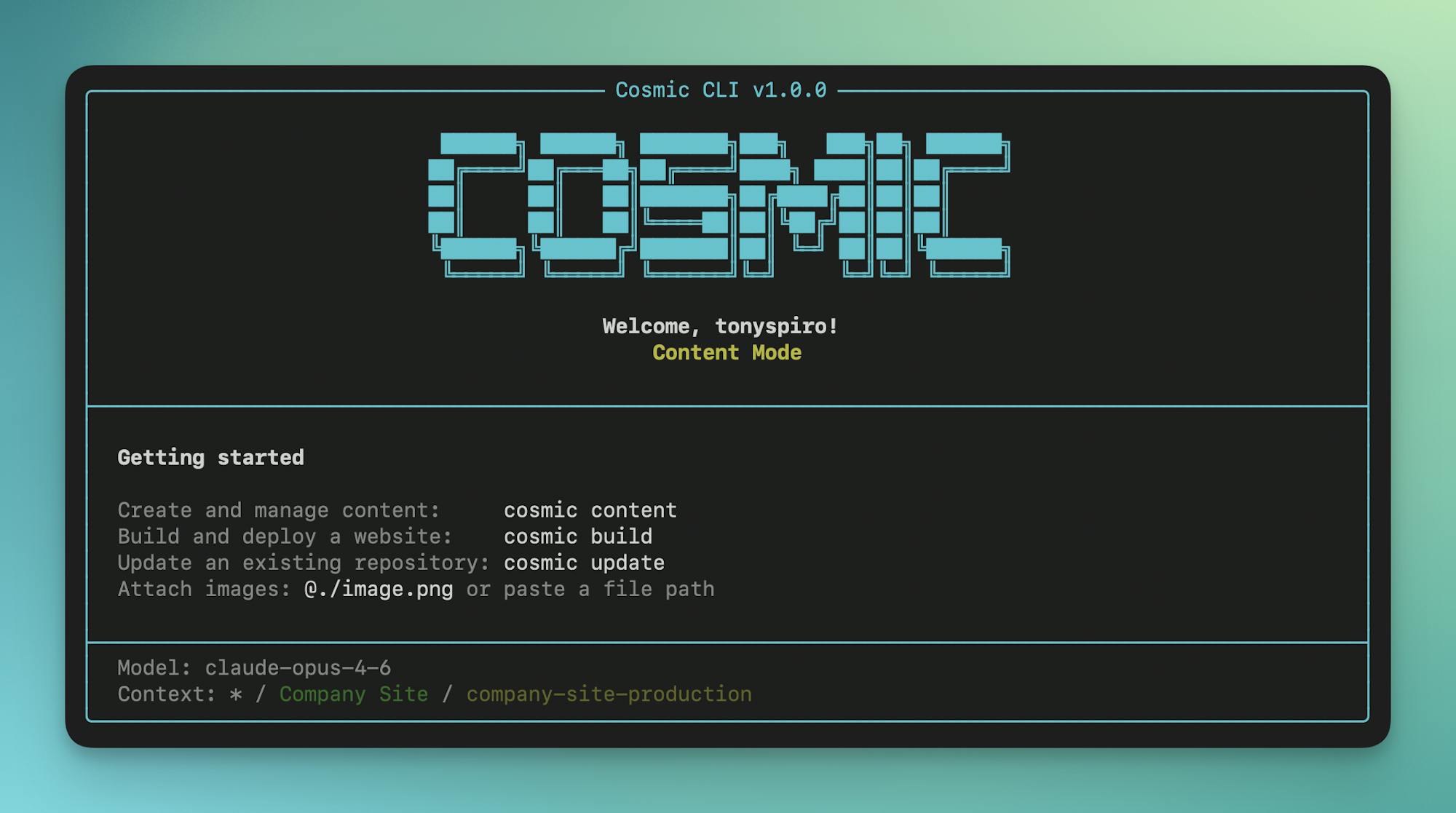
Installation
Using npm (recommended)
npm install -g @cosmicjs/cli
Using bun
bun add -g @cosmicjs/cli
Verify the installation:
cosmic --version
Requires Node.js 18 or later.
Quick Start
# Login to your Cosmic account
cosmic login

# Set your working context (interactive selection)
cosmic use

# Start interactive shell (no "cosmic" prefix needed)
cosmic shell

# Or run individual commands
cosmic chat                 # Start AI chat mode
cosmic content              # Create/manage content with AI
cosmic build                # Build a new app with AI
cosmic update my-repo       # Update existing code with AI
cosmic automate             # Create agents & workflows with AI
Zero to Production in One Command
cosmic login && cosmic projects create && cosmic build -p "A recipe blog" && cosmic deploy start --watch
# → Creates project, generates content model, builds Next.js app, deploys to Vercel
Authentication
User Authentication
Login with your Cosmic account for full dashboard access:
cosmic login
cosmic whoami               # Show current user
cosmic logout               # Clear credentials
Agent Signup (no prior account)
For AI agents that need to provision a Cosmic project from scratch on behalf of a human, without any prior login:
# Provision a project + bucket tied to a human's email. Cosmic emails them a
# 6-digit claim code. The CLI is activated as the new agent session
# automatically, so the commands below operate on the new bucket right away.
cosmic agent-signup --email tony@example.com --project "Recipe Blog" --agent-id my-agent

# Standard commands work against the new bucket immediately:
cosmic ls
cosmic types create

# When the human pastes the code back, verify to lift restricted-mode limits:
cosmic agent-verify 123456

# Check current state, tier limits, and claim status:
cosmic agent-status

# Show the full bucket read/write keys created during signup:
cosmic agent-keys

# Re-activate the agent session if `cosmic login` replaced it:
cosmic agent-use
The CLI stores agent_key, access_token (user JWT), and bucket keys in ~/.cosmic/credentials.json. After agent-signup, the CLI sets the user JWT + bucket keys + project context so every standard command (e.g. cosmic types create, cosmic objects, cosmic ls) works without a separate "use" step. If an existing login is present, the CLI prints a notice that the previous session was replaced. Unclaimed agent buckets are auto-deleted after 14 days. cosmic whoami clearly labels active agent sessions. See Agent Skills for the full bootstrap flow and the corresponding HTTP API.
Personal Access Token
Authenticate with a Personal Access Token for scripts, CI/CD, and automation:
# Login with a token
cosmic login --token cos_YOUR_TOKEN

# Or set the COSMIC_TOKEN environment variable
export COSMIC_TOKEN=cos_YOUR_TOKEN
cosmic whoami
Create tokens at Account Settings > API Tokens. The COSMIC_TOKEN env var takes priority over stored credentials, making it ideal for CI/CD pipelines and non-interactive environments.
Bucket Key Authentication
For quick bucket-level access without logging in:
cosmic use --bucket=my-bucket --read-key=your-read-key --write-key=your-write-key
Interactive Shell
Start an interactive shell where you can run commands without typing cosmic each time:
cosmic shell
  Cosmic Shell v1.0.0
  Logged in as: you@example.com

cosmic default> ls
cosmic default> cd my-project
cosmic my-project> objects list
cosmic my-project> !git status    # Use ! prefix for system commands
cosmic my-project> exit
Shell features:
- No
cosmicprefix needed for commands !prefix runs system shell commands (!ls,!git status)- Prompt shows current workspace/bucket context
- Command history with arrow keys
helpshows available commands
AI Chat and Shortcuts
Interactive Chat Mode
Start an AI chat session to interact with your content:
cosmic chat                  # Default ask mode (read-only)
cosmic chat --content        # Content mode (can modify content)
cosmic chat --build          # Build mode (generate apps)
cosmic chat --repo           # Repository mode (code changes)
cosmic chat --automate       # Automation mode (create agents & workflows)
Provide context to the AI:
cosmic chat --types posts,authors              # Include object types
cosmic chat --links "https://docs.example.com" # Include external URLs
Content Mode
Create and manage content with AI assistance:
cosmic content                                 # Start content chat
cosmic content -p "Create 5 blog posts"        # With initial prompt
cosmic content --types posts,authors           # Include specific object types
cosmic content --ask                           # Read-only mode (no changes)
Build Mode
Generate complete applications:
cosmic build                                   # Start build chat (interactive)
cosmic build -p "A blog with dark mode"        # With description
cosmic build --types posts                     # Include content as context
Update Mode
Modify existing repository code:
cosmic update                                  # Select repo interactively
cosmic update my-repo                          # Specify repo
cosmic update my-repo -b feature-branch        # Specify branch
cosmic update my-repo -p "Add dark mode"       # With instructions
Automate Mode
Create AI agents and workflows with natural language:
cosmic automate                                        # Start automate chat
cosmic automate -p "Create a weekly content agent"     # With initial prompt
cosmic automate --ask                                  # Ask about automation without creating
Core Commands
Context & Navigation
Navigate your Cosmic workspace like a filesystem:
cosmic use                          # Interactive workspace selection
cosmic context                      # Show current context
cosmic ls                           # List contents at current level
cosmic cd my-project                # Navigate into project
cosmic cd ..                        # Go up one level
cosmic pwd                          # Show current location
Objects
cosmic objects list                          # List objects
cosmic objects list --type=posts             # Filter by type
cosmic objects list --status=draft           # Filter by status
cosmic objects get <id>                      # Get object details
cosmic objects create --type=posts           # Create object (interactive)
cosmic objects update <id> --title="New"     # Update object
cosmic objects delete <id>                   # Delete object
cosmic objects batch --file ops.json         # Batch add/edit/delete (up to 25)
cosmic objects batch --data '[...]'          # Batch with inline JSON
cosmic objects publish <id>                  # Publish object
Batch Operations
Perform multiple object operations in a single call. Each operation succeeds or fails independently. Maximum 25 operations per batch.
# From a JSON file
cosmic objects batch --file operations.json

# Inline JSON
cosmic objects batch --data '[{"method":"add","object":{"title":"Post 1","type":"posts"}},{"method":"edit","object_id":"OBJECT_ID","object":{"title":"Updated"}},{"method":"delete","object_id":"OBJECT_ID_2"}]'

# Output as JSON
cosmic objects batch --file operations.json --json
The operations file should be a JSON array (or an object with an operations key):
[
  { "method": "add", "object": { "title": "New Post", "type": "posts", "metadata": { "content": "Hello" } } },
  { "method": "edit", "object_id": "OBJECT_ID", "object": { "title": "Updated Title" } },
  { "method": "delete", "object_id": "OBJECT_ID" }
]
Types
Manage object types (content models) in your bucket:
cosmic types list                           # List object types
cosmic types get <slug>                     # Get type details & metafields
cosmic types create --title "Posts"         # Create object type
cosmic types update <slug> --emoji "📝"     # Update object type
cosmic types delete <slug>                  # Delete type (and all its objects)
cosmic types duplicate <slug>              # Duplicate a type
Media
cosmic media list                    # List media files
cosmic media list --folder=images    # Filter by folder
cosmic media get <id>                # Get media details
cosmic media upload ./image.png      # Upload file
cosmic media delete <id>             # Delete media
cosmic media move <id> --folder=photos  # Move media to a folder
cosmic media unfolder <id>           # Remove media from folder
AI Generation
cosmic ai generate "Your prompt"               # Generate text (streaming)
cosmic ai generate "prompt" --model=gpt-5      # Specify model
cosmic ai image "A sunset over mountains"      # Generate image
cosmic ai image "prompt" --folder=heroes       # Save to folder
cosmic ai image "Coffee cup icon" --format=svg # Generate an SVG icon
cosmic ai audio "Your text here"               # Generate audio (TTS)
cosmic ai audio "text" --voice=sage            # Specify voice
Media Folders
Organize your media library with folders. Folders are managed as subcommands of cosmic media folders:
cosmic media folders list                     # List all media folders
cosmic media folders create --title "Photos"  # Create a folder
cosmic media folders create --title "Docs" --emoji "📄"  # With emoji
cosmic media folders update <slug> --title "Images"      # Rename folder
cosmic media folders delete <slug>            # Delete folder
Move media into or out of folders:
cosmic media move <mediaId> --folder photos       # Move to folder
cosmic media move <id1> <id2> --folder photos     # Move multiple
cosmic media unfolder <mediaId>                   # Remove from folder
| Option | Description |
|---|---|
--title | Folder title (required for create) |
--slug | Custom slug (auto-generated from title) |
--emoji | Folder emoji icon |
Billing
Manage project billing, plans, addons, and usage from the CLI. Requires a project to be selected.
Usage & Portal
cosmic billing usage                          # Show project usage (API requests, storage, AI tokens, etc.)
cosmic billing portal                         # Open Stripe billing portal in browser
Plans
cosmic billing plans list                     # List available plans with pricing
cosmic billing plans subscribe                # Subscribe to a plan (with confirmation)
cosmic billing plans subscribe --price-id price_123  # Subscribe with specific price ID
cosmic billing plans cancel                   # Cancel plan subscription
Addons
cosmic billing addons list                    # List addons with current quantities
cosmic billing addons subscribe               # Subscribe/update addons (with confirmation)
cosmic billing addons cancel <addonId>        # Cancel addon subscription
Quantity-based addons (users, buckets, AI tokens) are handled through addons subscribe -- it prompts for quantities, defaults to current values, and manages AI input/output tokens together.
Billing Page
cosmic billing open # Open billing page in browser
Repositories and Deployment
Repositories
cosmic repos list                              # List connected repos
cosmic repos connect --url <github-url>        # Connect a GitHub repo
cosmic repos clone                             # Clone repo with auto-configured .env
cosmic repos clone <repoId>                    # Clone specific repo
Branch management:
cosmic repos branches <repoId> list            # List branches
cosmic repos branches <repoId> create          # Create branch
Pull requests:
cosmic repos pr list <repoId>                  # List pull requests
cosmic repos pr create <repoId>                # Create pull request
cosmic repos pr merge <repoId> <number>        # Merge pull request
Environment variables:
cosmic repos env list <repoId>                 # List env vars
cosmic repos env create <repoId> -k KEY -v VALUE  # Add env var
Custom domains:
cosmic repos domains list <repoId>             # List domains
cosmic repos domains create <repoId> <domain>  # Add domain
Deployments
cosmic deploy start <repoId>                   # Deploy to Vercel
cosmic deploy start <repoId> --watch           # Deploy and watch progress
cosmic deploy list <repoId>                    # List deployments
cosmic deploy logs <deploymentId>              # Get logs
cosmic deploy logs <deploymentId> --follow     # Stream logs
cosmic deploy cancel <repoId> <deploymentId>   # Cancel deployment
Webhooks
Create and manage webhooks to receive notifications when content changes:
cosmic webhooks list                                        # List webhooks
cosmic webhooks get <id>                                    # Get webhook details
cosmic webhooks create                                      # Create webhook (interactive)
cosmic webhooks create --title "Notify" \
  --endpoint https://example.com/hook \
  --resource objects --events created,edited               # Create with options
cosmic webhooks update <id> --endpoint https://new.url     # Update webhook
cosmic webhooks delete <id>                                # Delete webhook
Webhook options:
| Option | Description |
|---|---|
--resource | objects, media, or merge_request |
--events | Comma-separated: created, edited, deleted, completed |
--object-types | Filter by object type slugs |
--payload | Include full payload in webhook |
Alias: cosmic wh
Team Management
Manage project team members (requires a project to be selected):
cosmic team list                              # List project team members
cosmic team add user@example.com              # Add team member (interactive role)
cosmic team add user@example.com --role admin # Add with specific role
cosmic team update <userId> --role manager    # Change member role
cosmic team remove <userId>                   # Remove team member
Project roles:
| Role | Description |
|---|---|
admin | Full access to the project |
manager | Manage content and settings |
user | Content access based on bucket roles |
Domains and DNS
Manage domains and DNS records:
cosmic domains list                                  # List all domains
cosmic domains get <id>                              # Get domain details
cosmic domains search example.com                    # Search available domains
cosmic domains import example.com                    # Import external domain
cosmic domains connect <id> --repo <repoId>          # Connect domain to repo
cosmic domains disconnect <id> --repo <repoId>       # Disconnect from repo
cosmic domains delete <id>                           # Delete domain
DNS record management:
cosmic domains dns list <domainId>                   # List DNS records
cosmic domains dns add <domainId>                    # Add record (interactive)
cosmic domains dns add <domainId> -t A -n @ -v 1.2.3.4  # Add with options
cosmic domains dns update <domainId> <recordId>      # Update record
cosmic domains dns delete <domainId> <recordId>      # Delete record
DNS record types: A, AAAA, CNAME, MX, TXT, SRV, NS
AI Agents and Workflows
Agents
Create specialized AI agents to automate tasks:
cosmic agents list                   # List agents
cosmic agents create --type=content  # Create content agent (interactive)
cosmic agents create --type=repo     # Create repository agent
cosmic agents run <id>               # Run agent
cosmic agents executions <agentId>   # List executions
Agent types:
| Type | Alias | Description |
|---|---|---|
content | — | Creates and manages content in your bucket |
repository | code, repo | Makes code changes to connected repositories |
computer_use | — | Browser automation with AI vision |
Advanced agent operations:
cosmic agents follow-up <agentId>              # Continue work on same branch
cosmic agents pr <agentId>                     # Create PR from agent work
cosmic agents capture-auth --url <login-url>   # Capture browser auth for computer use
Workflows
Chain multiple agents into automated pipelines:
cosmic workflows create --name "Pipeline" --agent <agentId>   # Create workflow
cosmic workflows add-step <id> --agent <id>                   # Add step
cosmic workflows run <id>                                     # Execute
cosmic workflows executions                                   # List executions
cosmic workflows executions <execId>                          # Get details
cosmic workflows executions <execId> --watch                  # Watch until complete
AI Models
List all available models:
cosmic models
Set your default model:
cosmic config set defaultModel claude-opus-5-5
Or specify per-command:
cosmic ai generate --model=gpt-5 "Your prompt"
Available models:
| Provider | Models |
|---|---|
| Anthropic | claude-fable-5, claude-opus-5-5, claude-opus-5, claude-opus-4-8, claude-opus-4-7, claude-sonnet-5, claude-sonnet-4-6, claude-haiku-4-5-20251001 |
| OpenAI | gpt-5.5, gpt-5.2-codex, gpt-5.2, gpt-5, gpt-5-mini, gpt-5-nano |
gemini-3.1-pro-preview | |
| Moonshot | kimi-k3 |
Configuration
cosmic config get                    # Show all config
cosmic config get defaultModel       # Get specific value
cosmic config set defaultModel gpt-5 # Set value
| Option | Description |
|---|---|
defaultModel | Default AI model for generation |
apiUrl | Custom API URL |
sdkUrl | Custom SDK URL (for local development) |
Configuration is stored in ~/.cosmic/:
config.json— Settingscredentials.json— Auth tokens
Global Options
All commands support these flags:
--json          # Output as JSON (for scripting)
--verbose, -v   # Enable verbose output
--no-color      # Disable colored output
Full Example
Build and deploy a complete app from scratch:
# 1. Login to Cosmic
cosmic login

# 2. Create a new project with AI-generated content
cosmic projects create
# Follow prompts → "A recipe blog with recipes, categories, and authors"

# 3. Generate more content with AI
cosmic content -p "Create 5 recipes with images across different categories"

# 4. Build an app from your content
cosmic build -p "A modern recipe blog with search and category filtering"
# AI generates a complete Next.js app and creates a GitHub repo

# 5. Deploy to Vercel
cosmic deploy start <repoId> --watch
# ✓ Deployed: https://recipe-blog.cosmic.site

# 6. Clone locally for development
cosmic repos clone <repoName>
cd recipe-blog && npm install && npm run dev

# 7. Make updates
cosmic update recipe-blog -p "Add a favorites feature and dark mode" -b theme

# 8. Create a PR and merge
cosmic repos pr create <repoId>
cosmic repos pr merge <repoId> 1
# Auto-deploys to production
CLI vs MCP Server vs Agent Skills
| Feature | CLI | MCP Server | Agent Skills |
|---|---|---|---|
| Purpose | Full project lifecycle | Direct content management | Code generation guidance |
| Use case | "Build and deploy an app" | "List my blog posts" | "Build a blog with Cosmic" |
| How it works | Interactive commands & AI chat | AI calls tools via MCP protocol | AI writes code using the SDK |
| Best for | Developers building from terminal | Managing content in AI assistants | Writing application code |